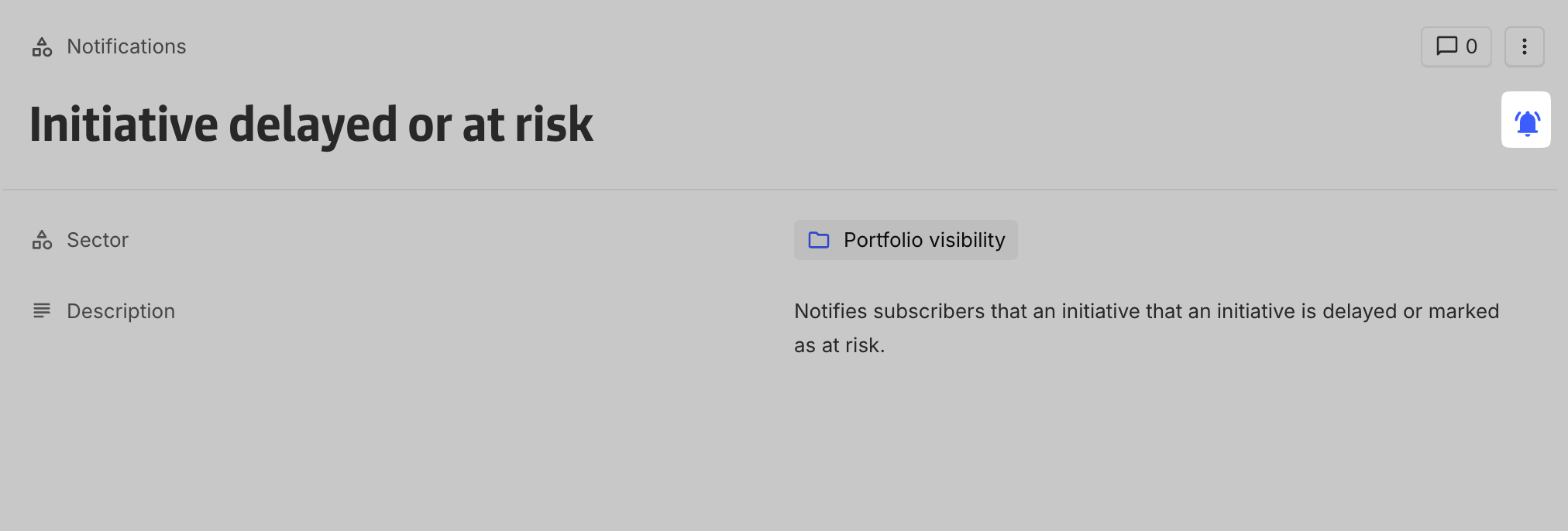
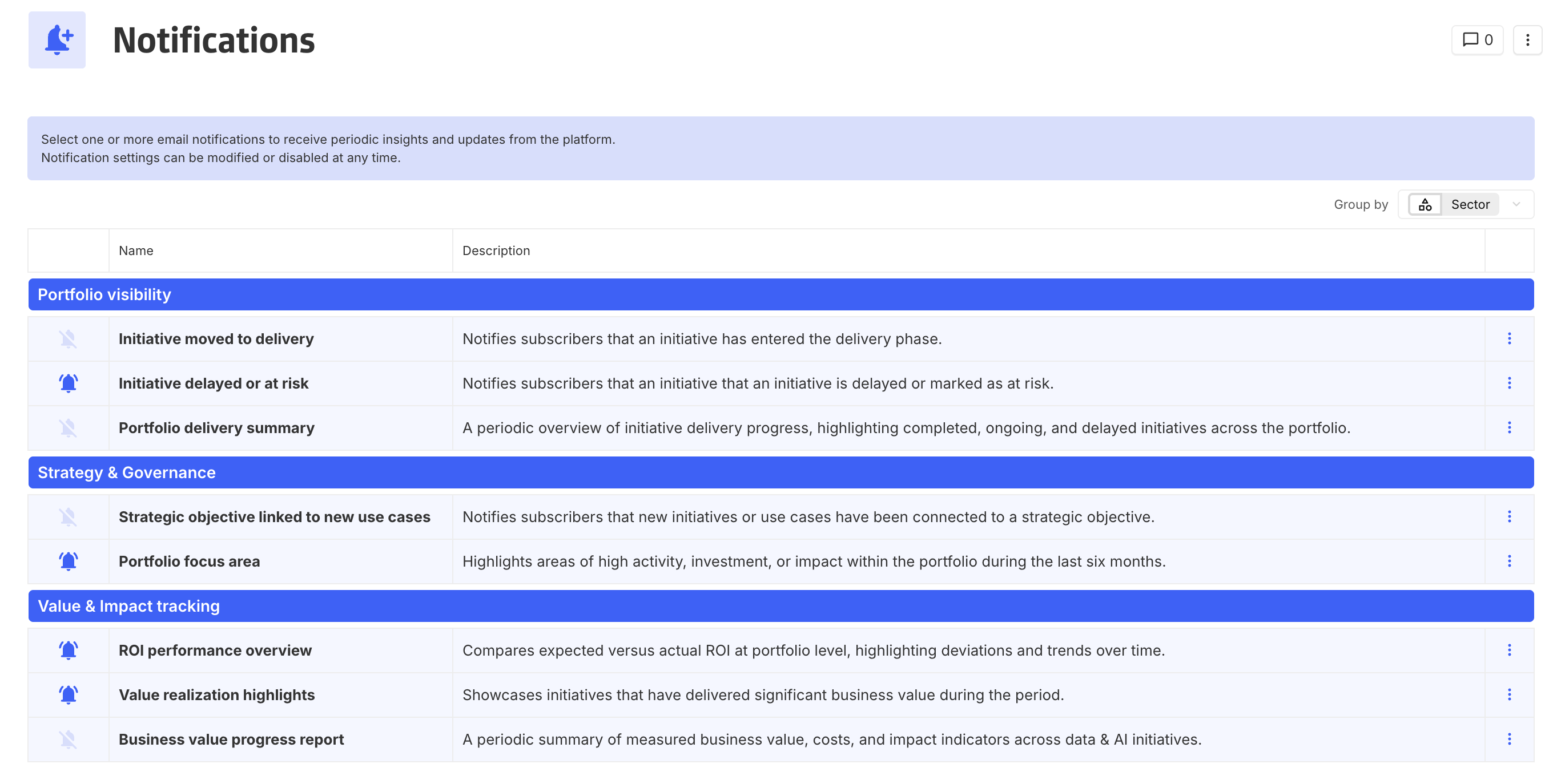
This configuration illustrates how custom, user-managed email notifications can be implemented through configuration.
It enables users to freely subscribe or unsubscribe from notifications, while allowing administrators to control visibility, and access.
The approach relies entirely on configuration and can be adapted to various notification strategies and use cases.
Overview
The objective of this configuration is to:
-
Define notifications as configurable instances
-
Allow users to subscribe to notifications individually
-
Restrict access when needed
-
Automatically determine notification recipients
-
Provide a clear and accessible unsubscribe mechanism directly from email content
All elements described below are fully configurable and can be adjusted based on organizational needs.
Notification Concept
Fields
A dedicated Notification concept is created to represent notifications.
This concept typically includes:
-
A Name, used to identify the notification
-
A Description, used to explain the purpose and content of the notification
-
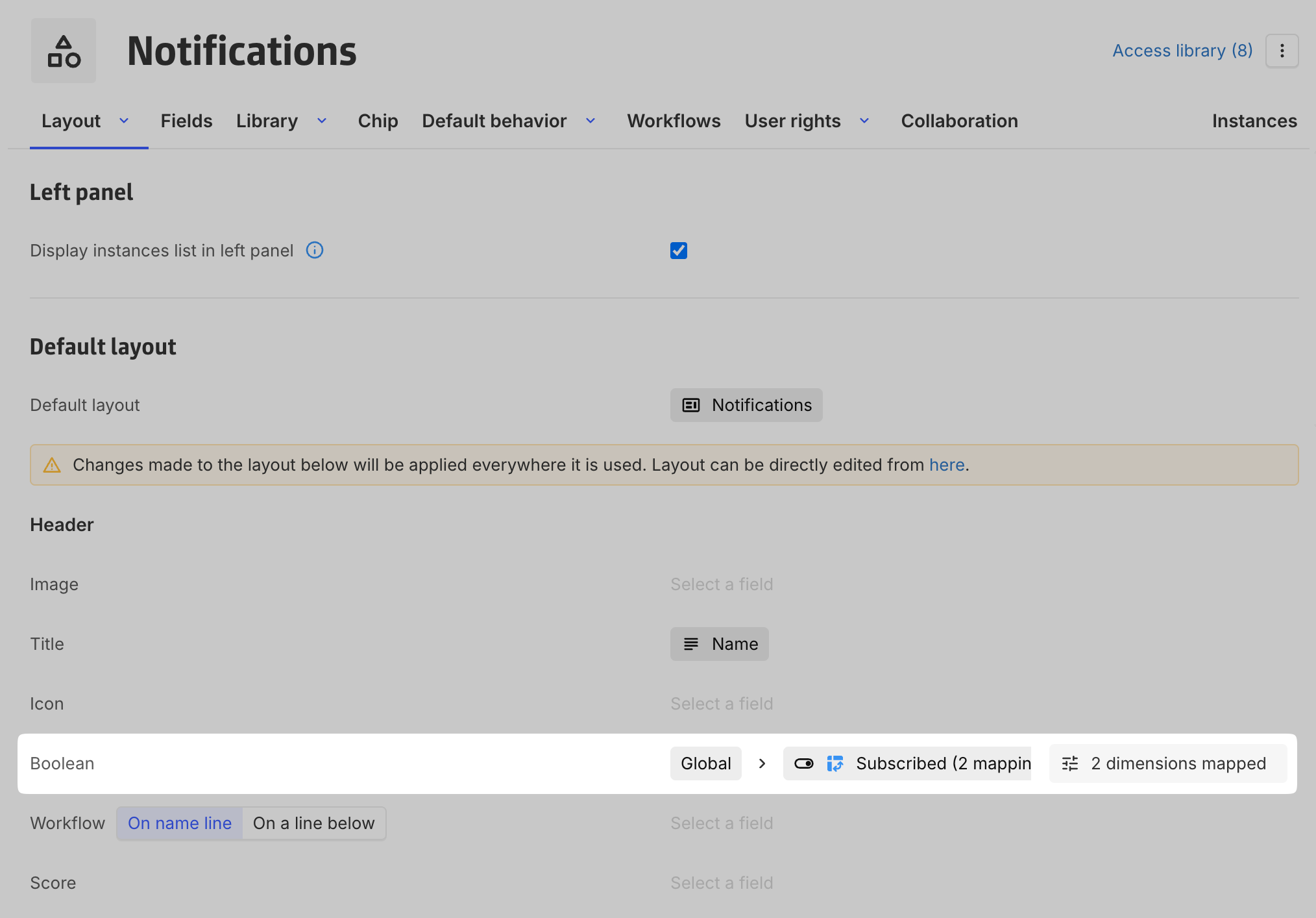
A multidimensional boolean with dimension User and Notification, used to allows each user to independently subscribe to or unsubscribe from specific notifications.
The first two fields are purely descriptive and help administrators and users understand the intent of each notification.
Access control
Not all users may need access to all notifications.
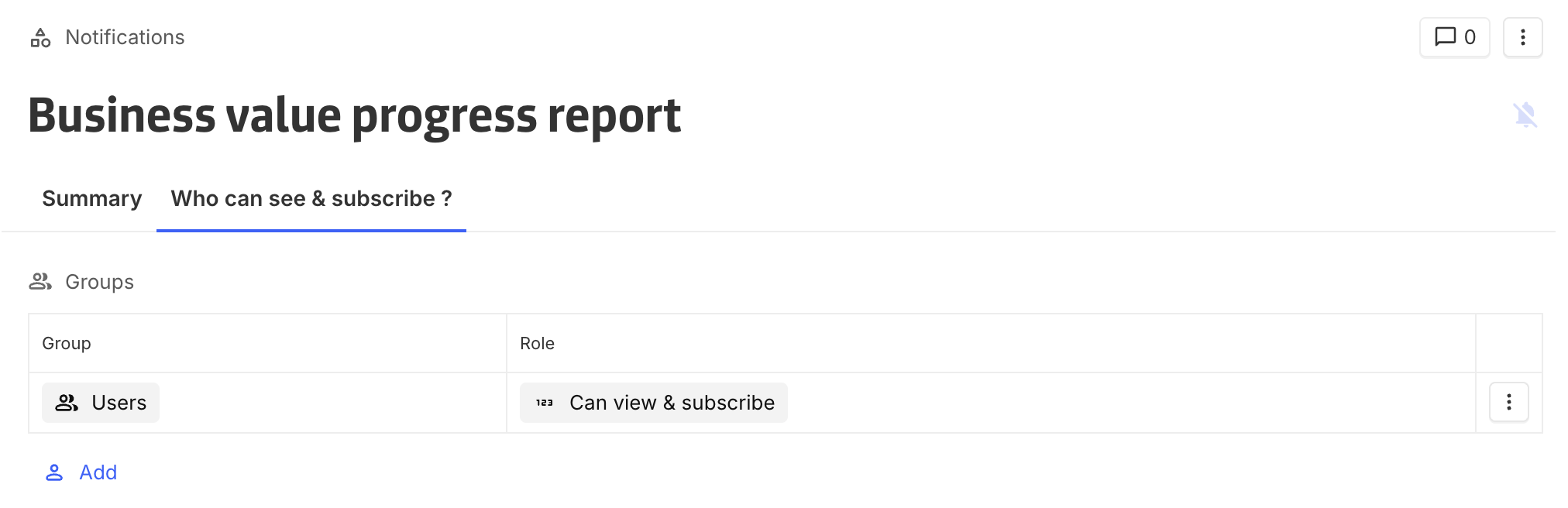
Roles are used to control visibility & subscription eligibility.
A dedicated role can be created, for example, the role Can subscribe and view notifications.
Configuration principle:
-
By default, users do not have visibility or edit rights on notifications.
-
Only groups assigned to the dedicated role can:
-
View notifications
-
Edit notifications, and as consequence subscribe or unsubscribe
-
This mechanism enables filtering of notifications based on user profiles, teams, or responsibilities. This ensures that only meaningful notifications are presented, avoiding unnecessary noise and improving relevance.
Emails configuration (automation)
Recipients
When a notification is triggered, recipients are determined by:
-
Retrieving all users
-
Filtering users where the boolean is set to
true(Global > Subscribed boolean)
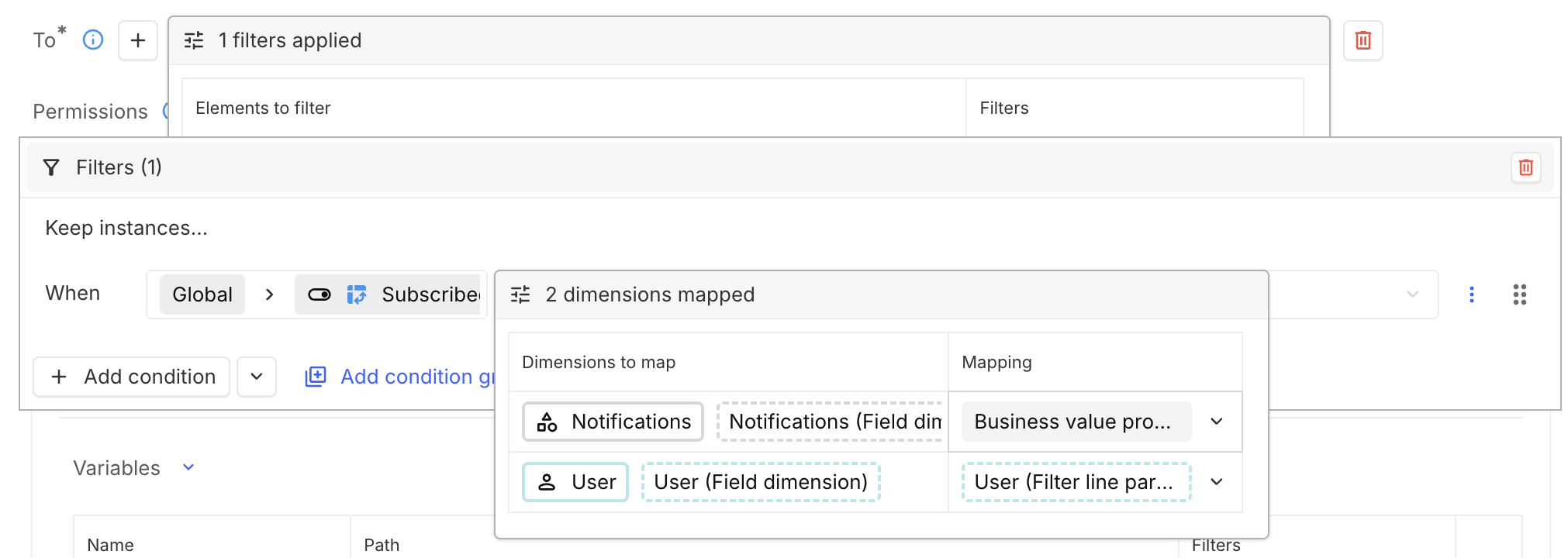
This path defines the recipient set for the automation email. It can be used either in the For each, so that each recipient receives an individual email, or directly in the To, in which case all recipients are included in a single email (e.g., in copy).
Contextual footer
To ensure clarity and traceability, email content can include a footer indicating:
-
The reason the email was received
-
The notification to which the user is subscribed
-
A direct link to the corresponding notification instance
This helps users understand the origin of the notification, its relevance, and easily unsubscribe if needed.