2023-12-21
[New] Notifications becomes Automation
Notifications is now called Automation.
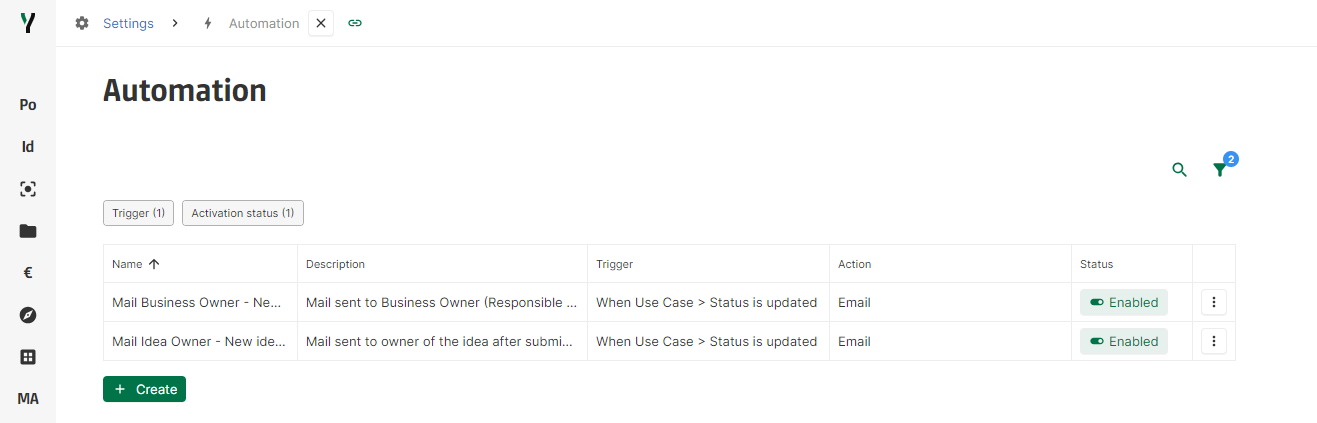
[Improvement] Automation list filtering
Automation list (previously known as Notifications) now offers the ability to filter by trigger type and activation status.
[Improvement] Better start performance
The initialization of the application is now more efficient, leading to faster start. A progress bar is now displayed during the initialization.
[Fix] Filters display when scrolling down
In certain conditions, it was difficult to edit filters, as the editing window disappeared when scrolling down.
2023-12-14
[Improvement] New advanced settings for dimension configuration
Field dimension configuration now offers three new advanced settings that can be accessed on demand.
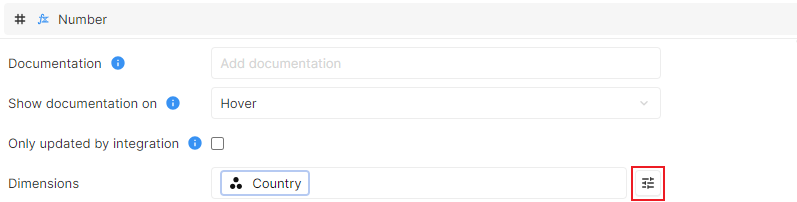
The three new advanced settings are :
-
Ability to set an alias on a dimension.
The defined label will be used in place of the default Dimension label when mapping the dimension. -
Ability to declare a mandatory dimension.
An error will be displayed for any dimension marked as mandatory and not mapped.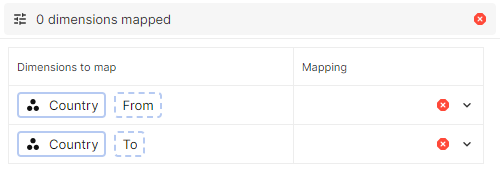
-
Ability to map the same concept on multiple dimensions.
This allows the support of a new variety of use cases. Dimension alias can be used to easily identify the dimensions.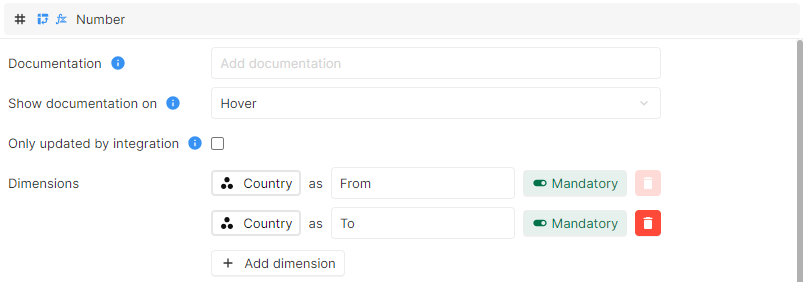
[Improvement] Automation for each section unique variable list
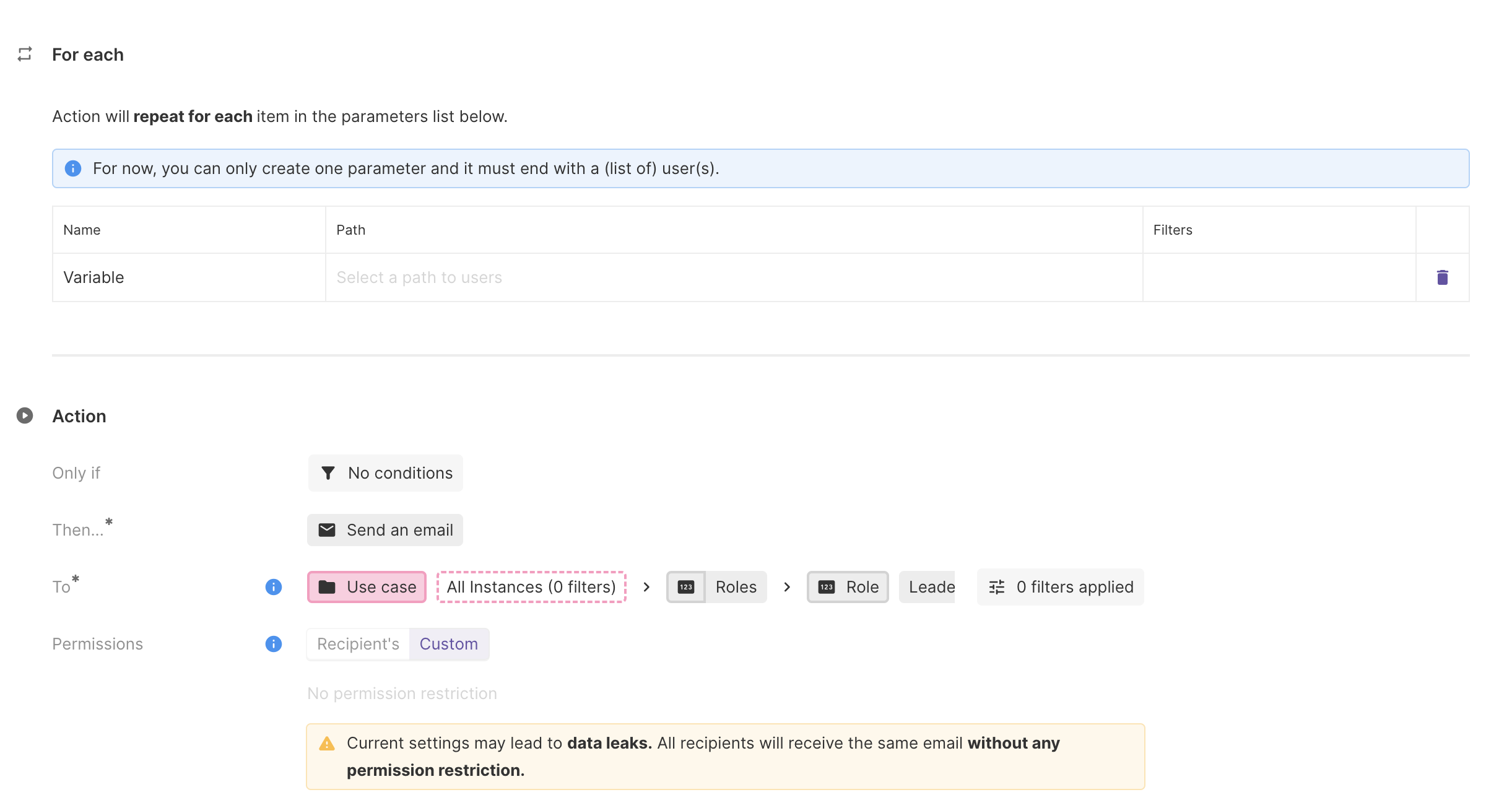
The elements of the list declared in the For each section of an automation rule are now unique.

In this example, the variables list is a list of all the Users that have a Leader Role in at least one Pilot Tasks. If some Users are Leader in more than one Pilot Tasks, they only appear once in the list, as the elements in the list are unique.
[Improvement] Automation variables names
When creating a variable in an automation rule, the default name of the variable now appears as a placeholder and is updated when modifying the corresponding path until a user sets a custom name. The default named variable can be used in paths and emails body like any other one.
[Fix] Date picker fix
Changing the year of a quarterly date no longer increments the quarter.
2023-12-07
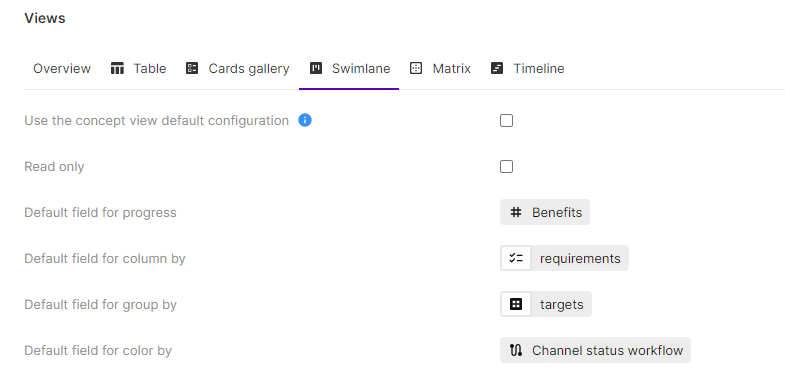
[New] Default field for color by on views
A Default field for color by is now available when configuring a swimlane, a matrix or a timeline view.
[Improvement] Scrollbar color change
The scrollbar is now darker to make it more visible.
[Improvement] Concept chip color change
The concept chips now have a white background with a colored border to avoid mistaking them for association or instance chips.

2023-11-30
[New] Creation of Jira issue from YOOI
The Jira integration can now create a Jira issue from YOOI.
For further details, please consult the updated Jira integration documentation.
[Improvement] Dashboard view and edit mode display
To ease editing dashboard, view and edit mode in dashboard are now similar :
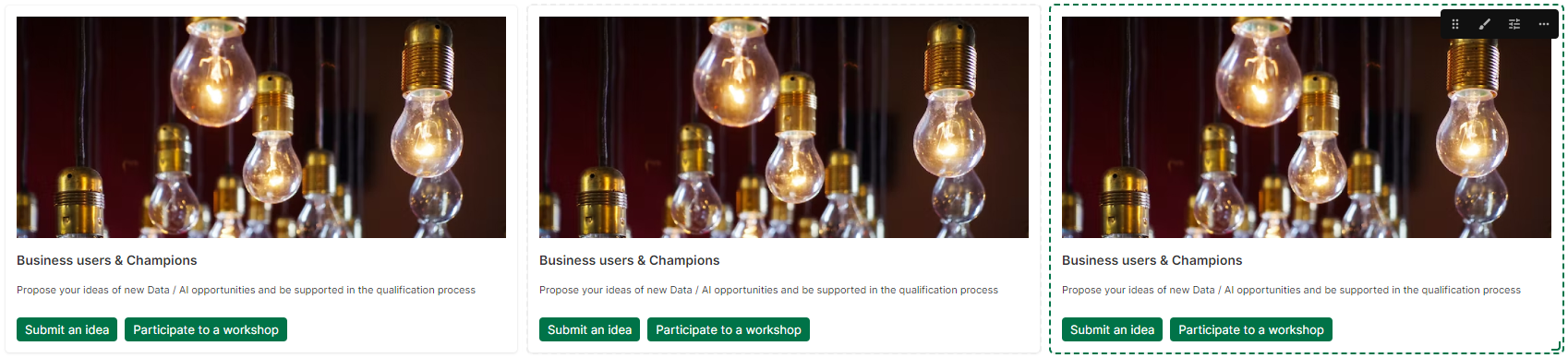
Upon hovering a widget in edit mode, a toolbar is displayed on the top right corner of the widget to access usual actions (drag, edit, duplicate and delete).
[Improvement] Ability to hide/display a widget title
In order to ease the administration of a dashboard, title can now be set on a widget and hidden.
When hidden, the title is only visible from the widget configuration page and master detail (left panel).
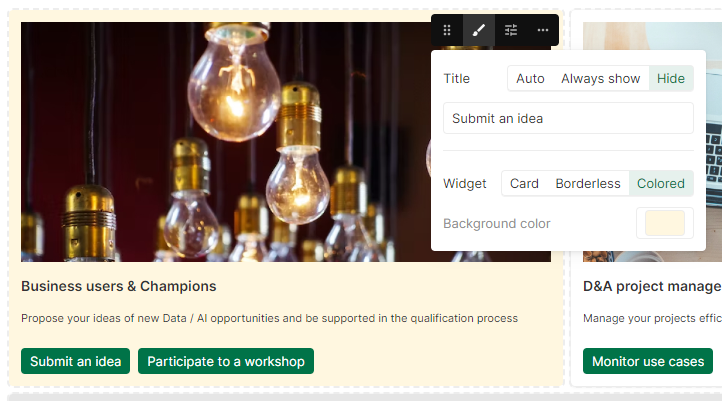
[Improvement] Quick access to widget styling option
When in dashboard edition mode, from the widget toolbar, a quick action menu can be acceded to configure its styling (title, display mode, colors, …).
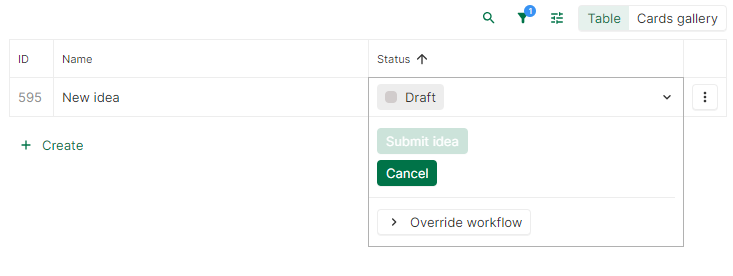
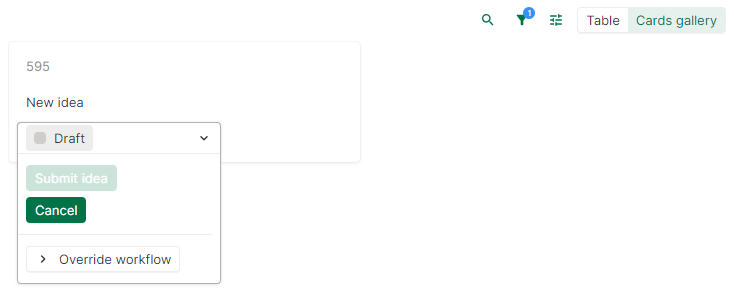
[Improvement] Workflow transition execution from tables and cards
Transitions can now be executed from cards and tables as well as overriding workflows.
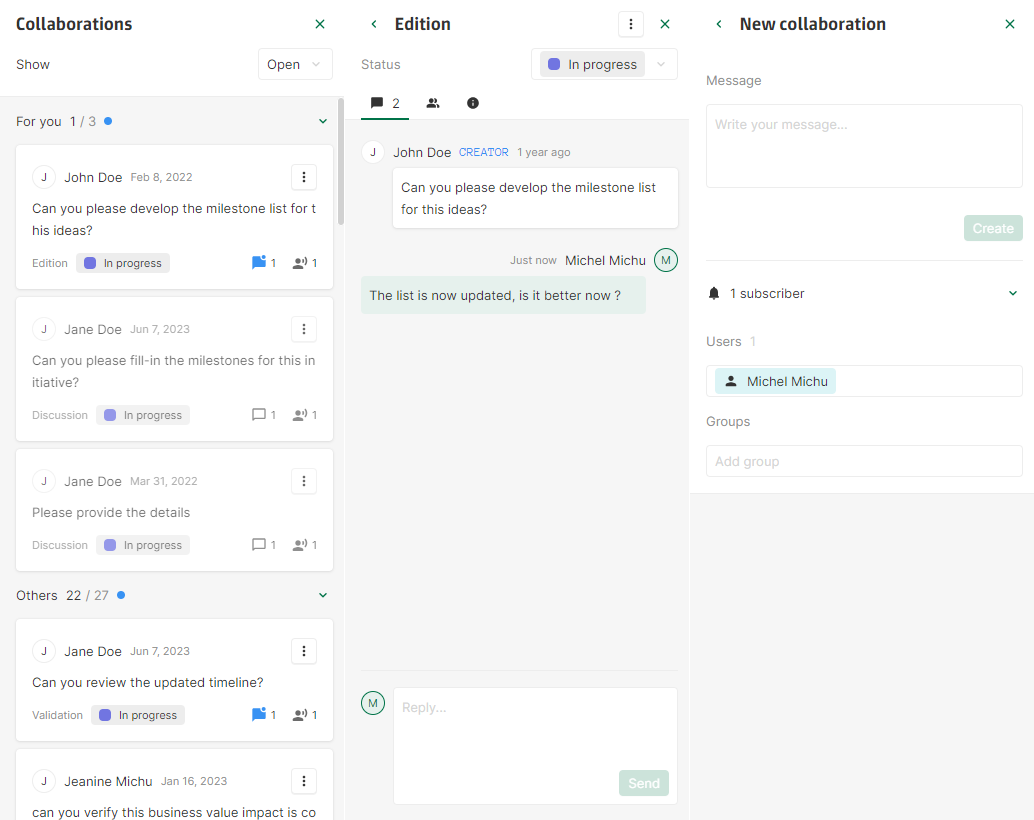
[Improvement] Collaboration panel readability improvement
To ease the use of the collaboration, the panel has been rebuilt to improve usage and readability.
2023-11-23
[New] Automation (Multiple recipients and general For each)
In automation rules, the following changes have been made :
-
Section To for sending emails :
-
To section can now handle multiple recipients.
-
Recipients can be added using the + Recipient button, choosing between a value in the model by using path (Use a path) or an ad-hoc email address (Use a value).
-

-
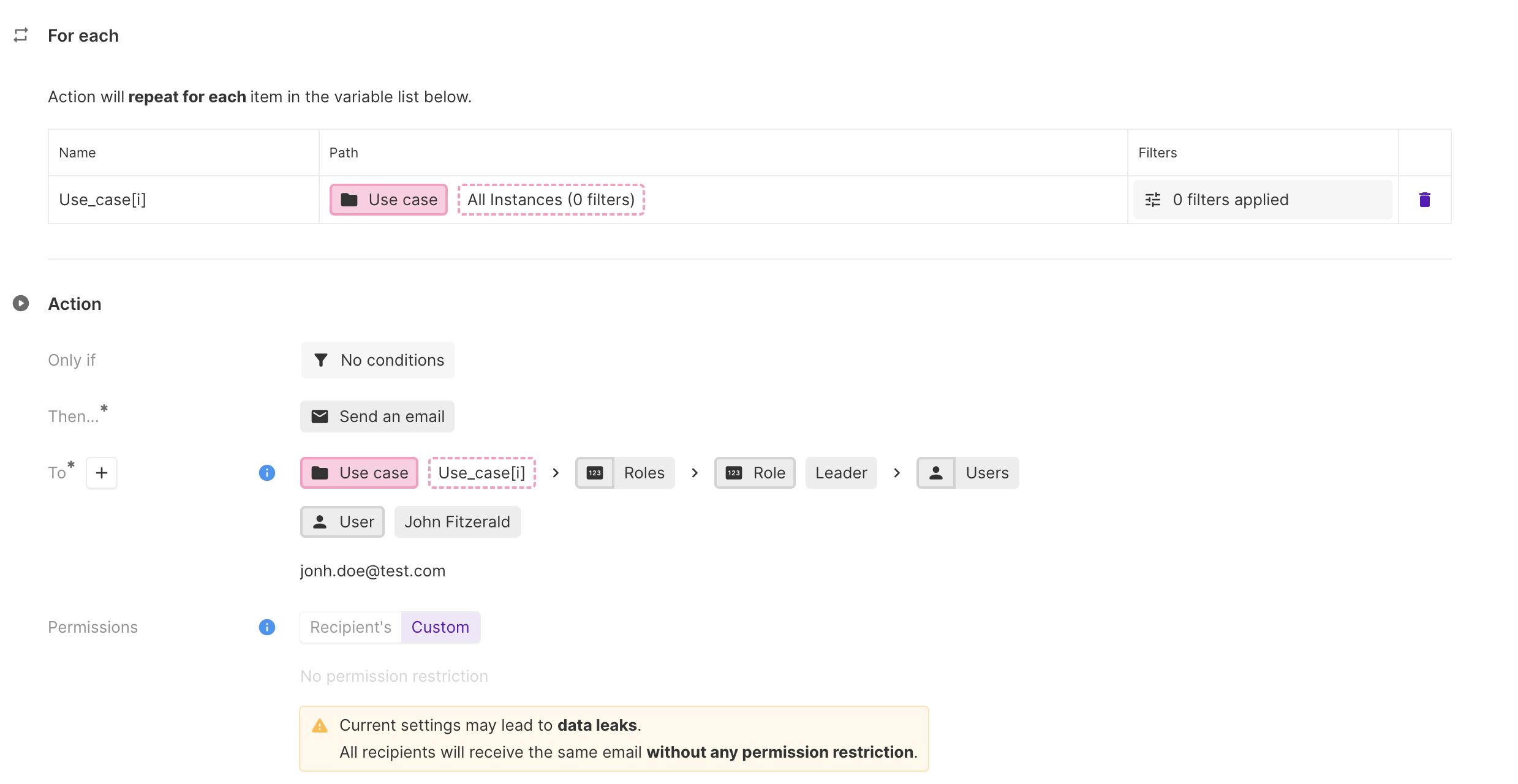
For each section was limited to User concept only. Now it is possible to use all concepts of the model.
Practical example :
Send an individual email for all Use cases to all the use case leaders, and also have two people in the recipients of all emails : Jonh Doe, for which the email address is filled manually, and John Fitzerald.
Permissions of the Leader are used to send the mail. A warning is displayed because Jonh Doe and John Fitzerald could receive some data they are not authorised to see in the application.
2023-11-16
[New] Automatic logout of inactive users
Users can be logged out after a configured amount of time of inactivity.
This can be configured on Admin settings > Security > General.
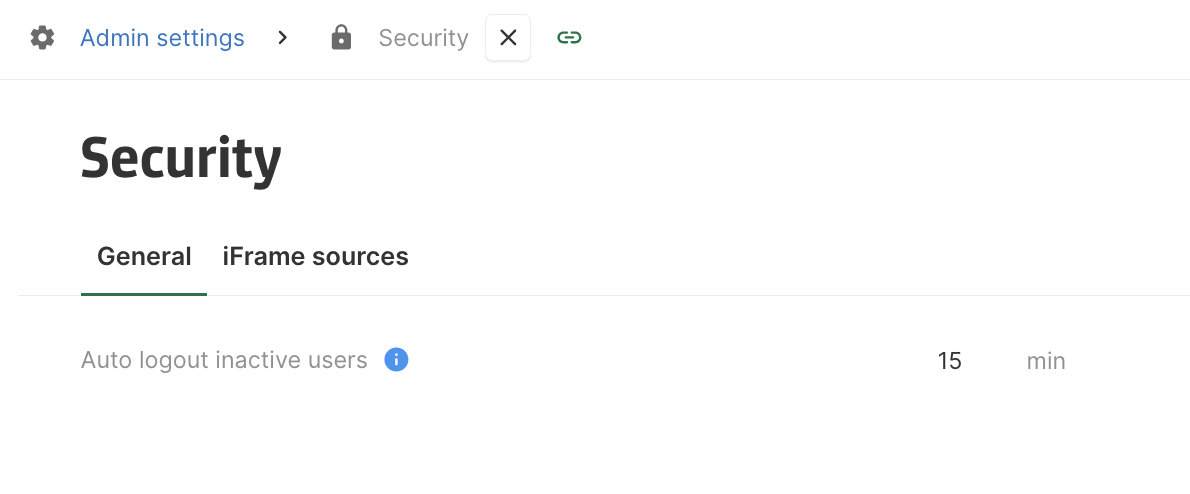
If nothing is configured, users will be logged out 24h after they logged in, as it was done previously.
[New] Jira connector now support PAT (Personal Access Token) authentication
Jira connector can now be configured using Basic authentication or Personal Access Token (Jira integration | Authentication).
Existing Jira connectors configurations have been migrated with the new syntax and continue to use Basic authentication. The identification method can be changed to Personal Access Token, if needed, by changing the JSON configuration.
[Improvement] Jira connector re-synchronise projects on JSON configuration update
On JSON configuration update, the Jira connector will ensure that projects are correctly synchronised between Jira and YOOI by refreshing all of them (using the latest version of the configuration and mappings).
As a consequence, users are able to restart the connector themself, if needed, by changing the JSON configuration (for example by adding a space at the end).
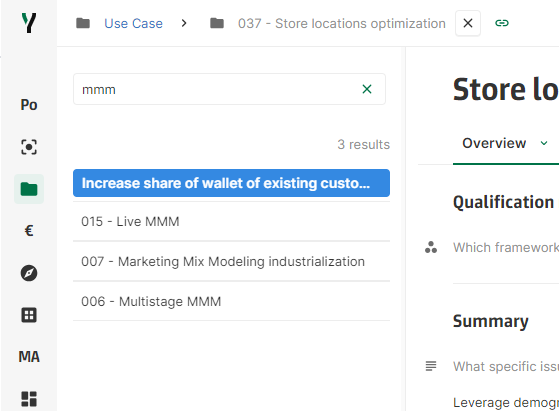
[Improvement] Master details now offers a quick filter
A new filter box is available on top of the master detail to quickly lookup for an instance.
The search term is not persisted when leaving the current page.
2023-11-09
[New] Text field now support formula
Formula can now be set on text fields.
A set of function was added to help manage text operation, the list of functions can be found in the Functions library (a link is available below any formula when editing a field configuration, see below).

In Functions library can be found:
-
The new functions for text under Text functions.
-
Five new functions that were also added for date to ease the extraction of year, month, week, etc. under Date functions.
[Improvement] Users email address are editable
Users email address can now be edited.
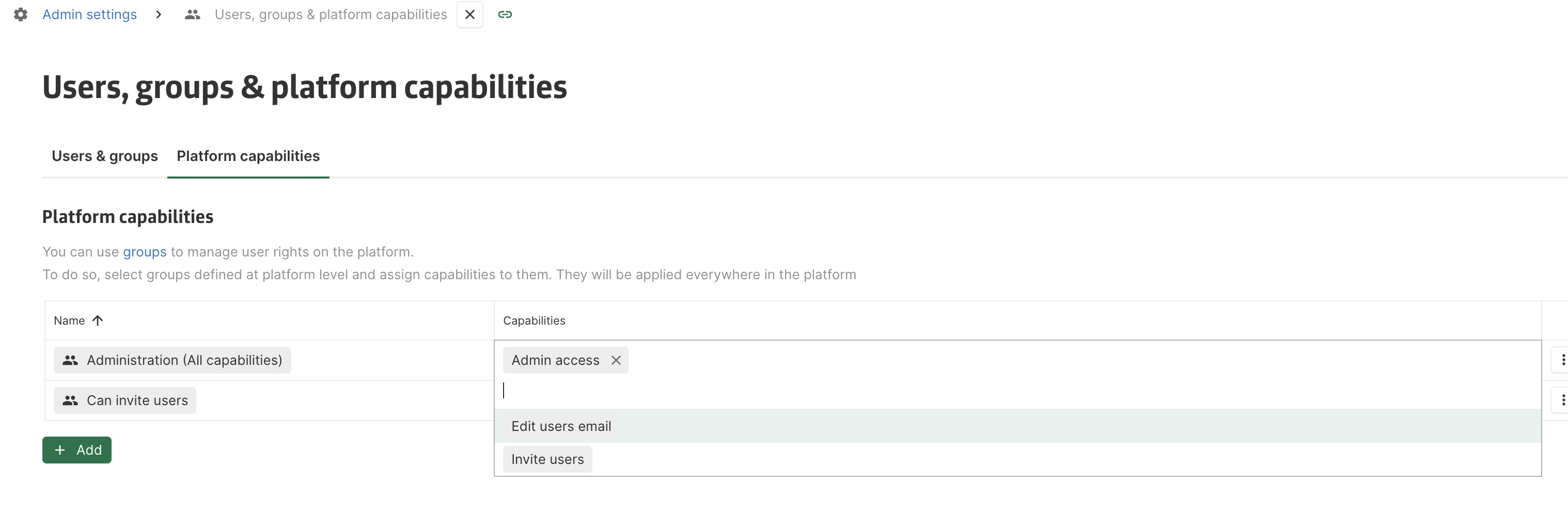
This feature is only available to users with the Edit users email platform capability.
As a reminder, platform capabilities are configurable in Admin settings > Users, groups and platform capabilities > Platform capabilities.
[Improvement] Browser tabs auto-reload after login
In case the user is logged out and has several tabs open, when login on one tab, all others tabs will automatically reload.
2023-11-02
[New] Color palette customization
In order to be able to easily use company colors in YOOI, the quick access colors used by the Color Picker. can now be customized.
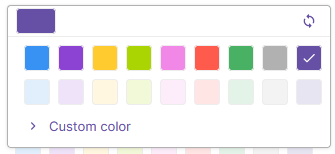
This can be configured on Admin settings > Customization.
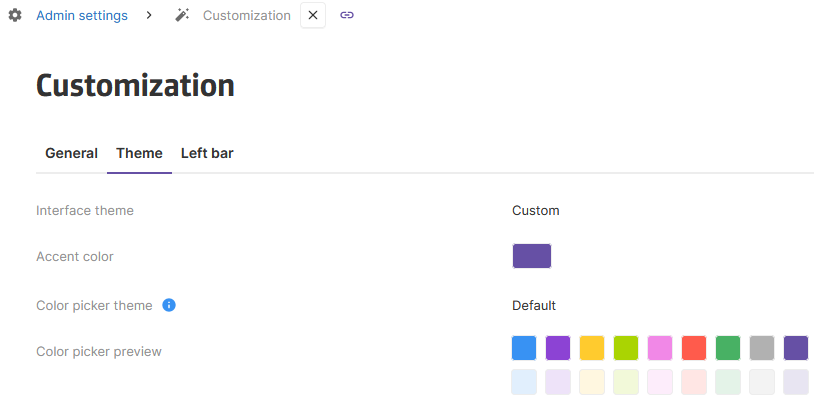
Color picker theme can be set to default (as before) or set to custom :
-
If Default is selected, the color palette has 9 colors (blue, purple, yellow, light green, pink, red, green, grey, and the Accent color)
-
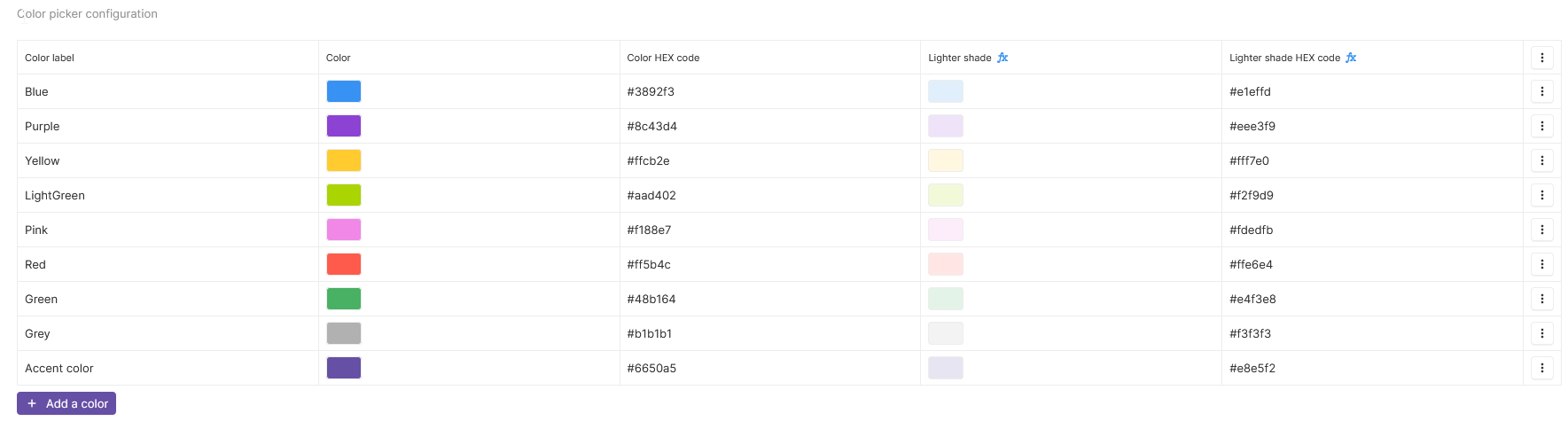
If Custom is selected, a table will appear to customise the color picker configuration. Up to 10 colors can be added, and a lighter version will be automatically computed, using the main colors.
[Improvement] Group by now support Association n-n fields
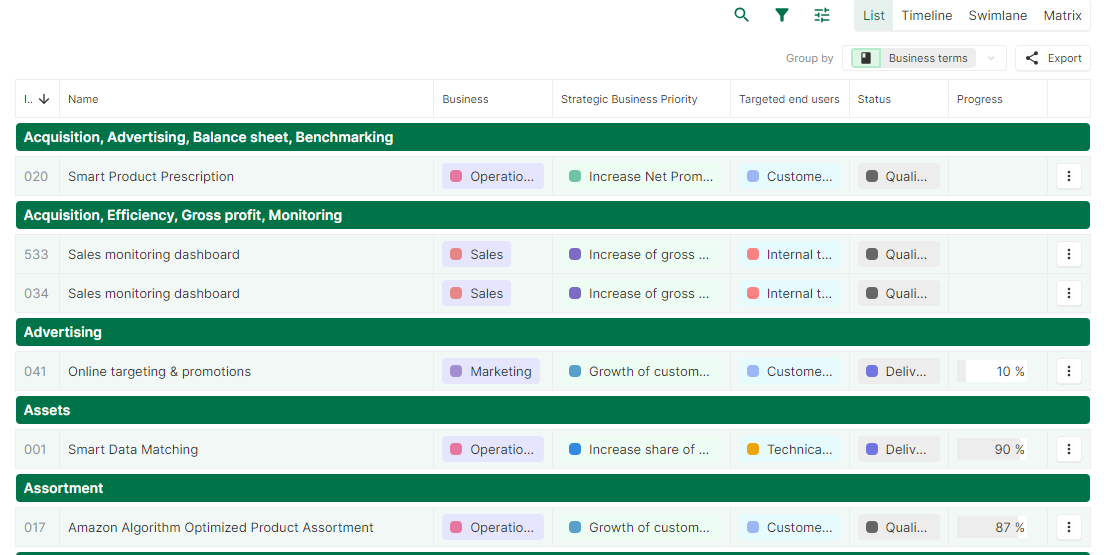
Representations that offers group by now support association n-n fields. One group will be created for each set of values.
2023-10-26
[New] Automation (For each, To and Permissions)
In order to have better control and flexibility on email generation, the behaviour of some automation principles have been changed.
Existing configured automation has been migrated so they behave exactly the same as they did before the release (i.e. sending individual emails with the recipient's permissions).
The following changes have been made:
-
Section To for sending emails: ‘To’ section don’t drive the email generation anymore (i.e. regarding destination user permission). ‘To’ is now used to define all the recipient of the email. A single email (same content) will be now sent to all the recipients in section 'To'. In order to apply individual permission for each recipients, please use the two new next features.
-
New For each section: it will be possible to repeat the email sending operation for a set of variables.
-
Permissions section: This email generation will use the specified permissions.
Additional documentation is available on the tooltips.
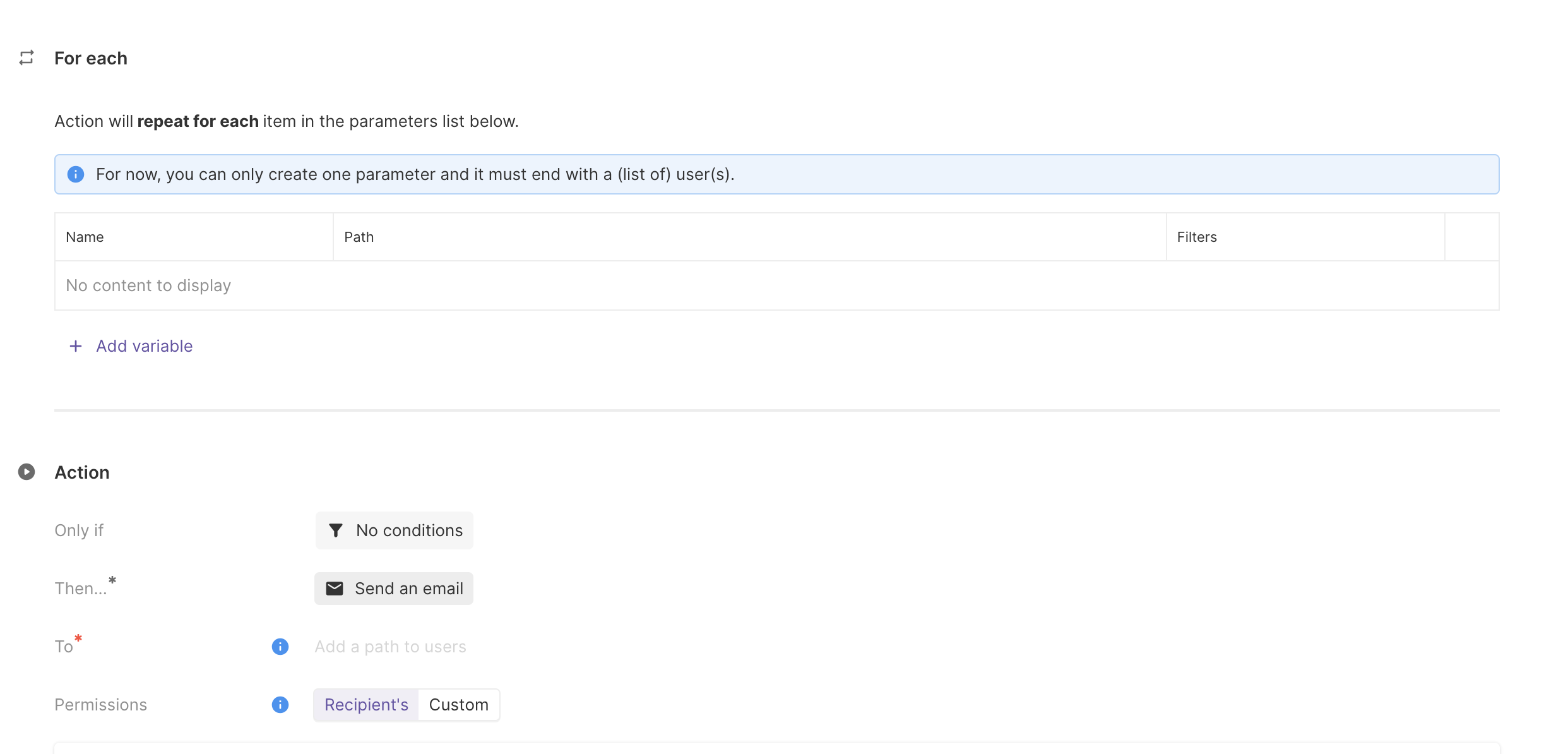
Practical examples
-
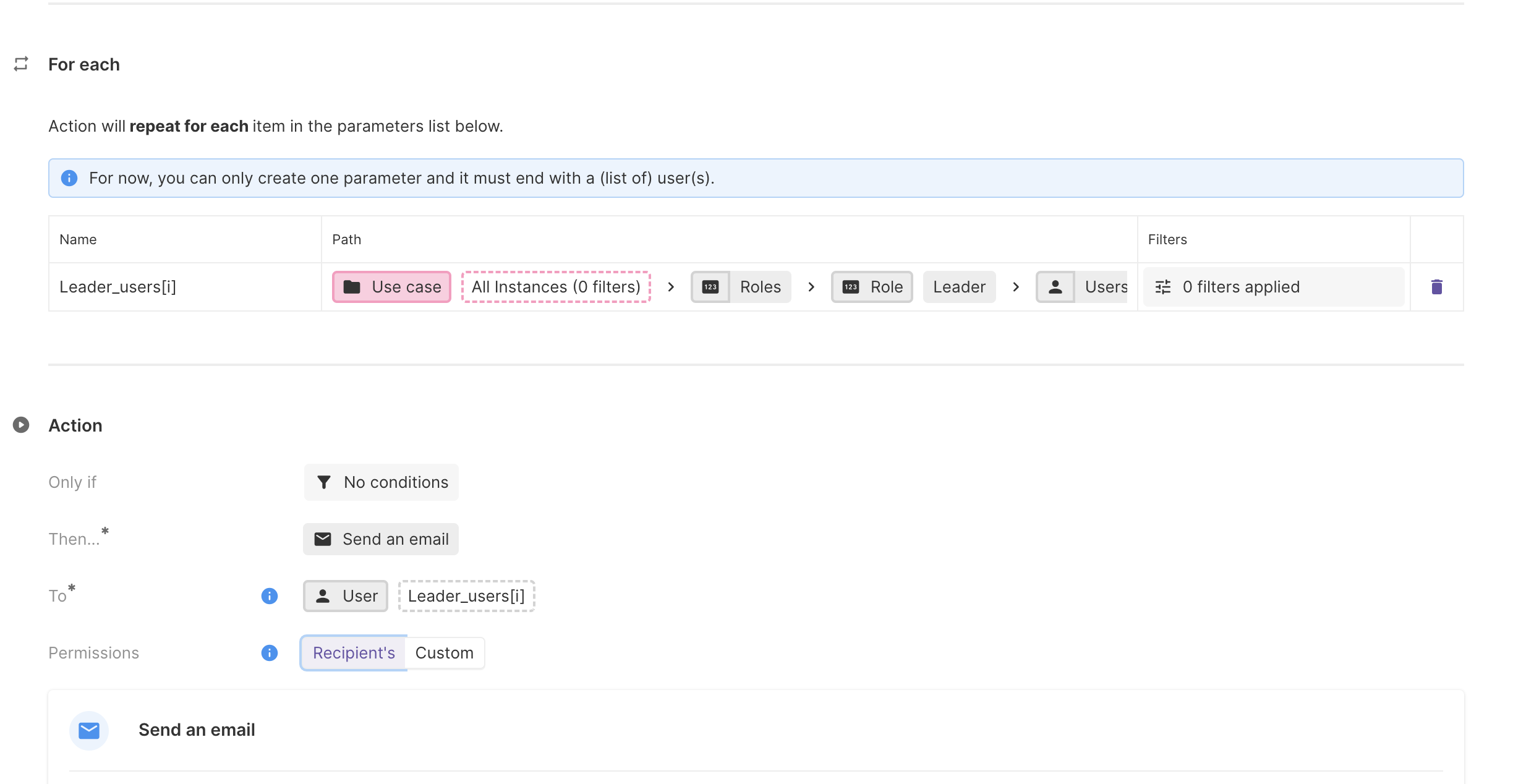
Send an individual email to all the use case leaders. These leaders should receive a personalized email:
-
For each: Each person with a leader role in at least one use case will receive an email
-
To: The current leader
-
Permissions: Those of the current leader
-
-
Send a global email to all use case leaders:
-
For each: No repetition, a single email needs to be sent.
-
To : All the use case leaders will receive the same email. The recipients of the email will be able to see who has also received the email.
-
Permissions: in this case, no restrictions on permissions have been set. It is also possible to choose the permissions of a particular user.
-