
2024-12-19
[New] Multi layouts per concept and multi-dimensional layouts
The new Layouts feature offers enhanced flexibility and control for customizing the display of instances in YOOI.
Multiple layouts per concept
A single concept can now have multiple layouts, enabling different designs for various use cases. All the Layouts are accessible in Settings > Layouts. Layouts can be edited directly from the layout detail page.
Although the ability to assign multiple layouts to a single concept may not yet provide substantial benefits, it will soon become a key feature as part of the broader ongoing development.
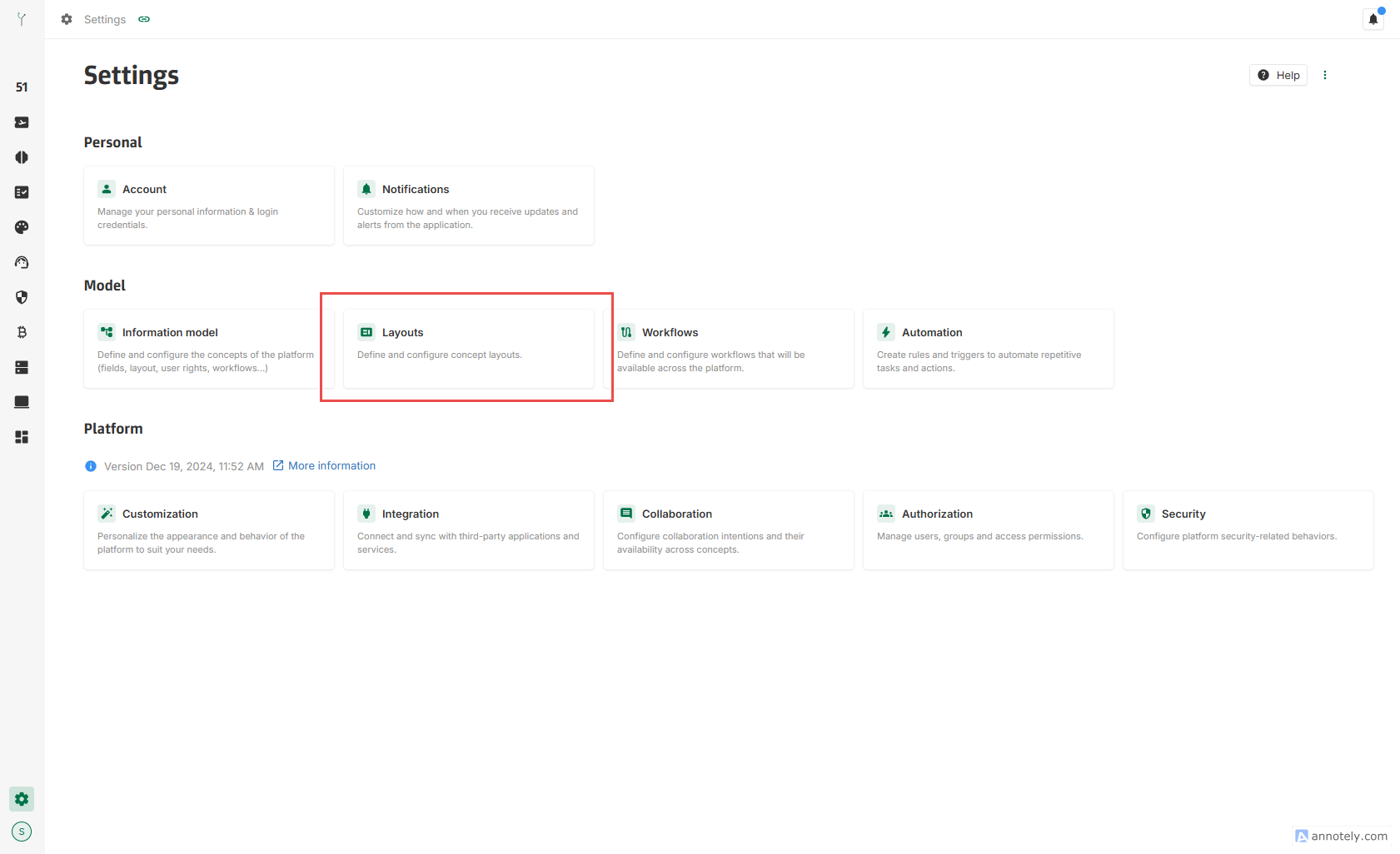
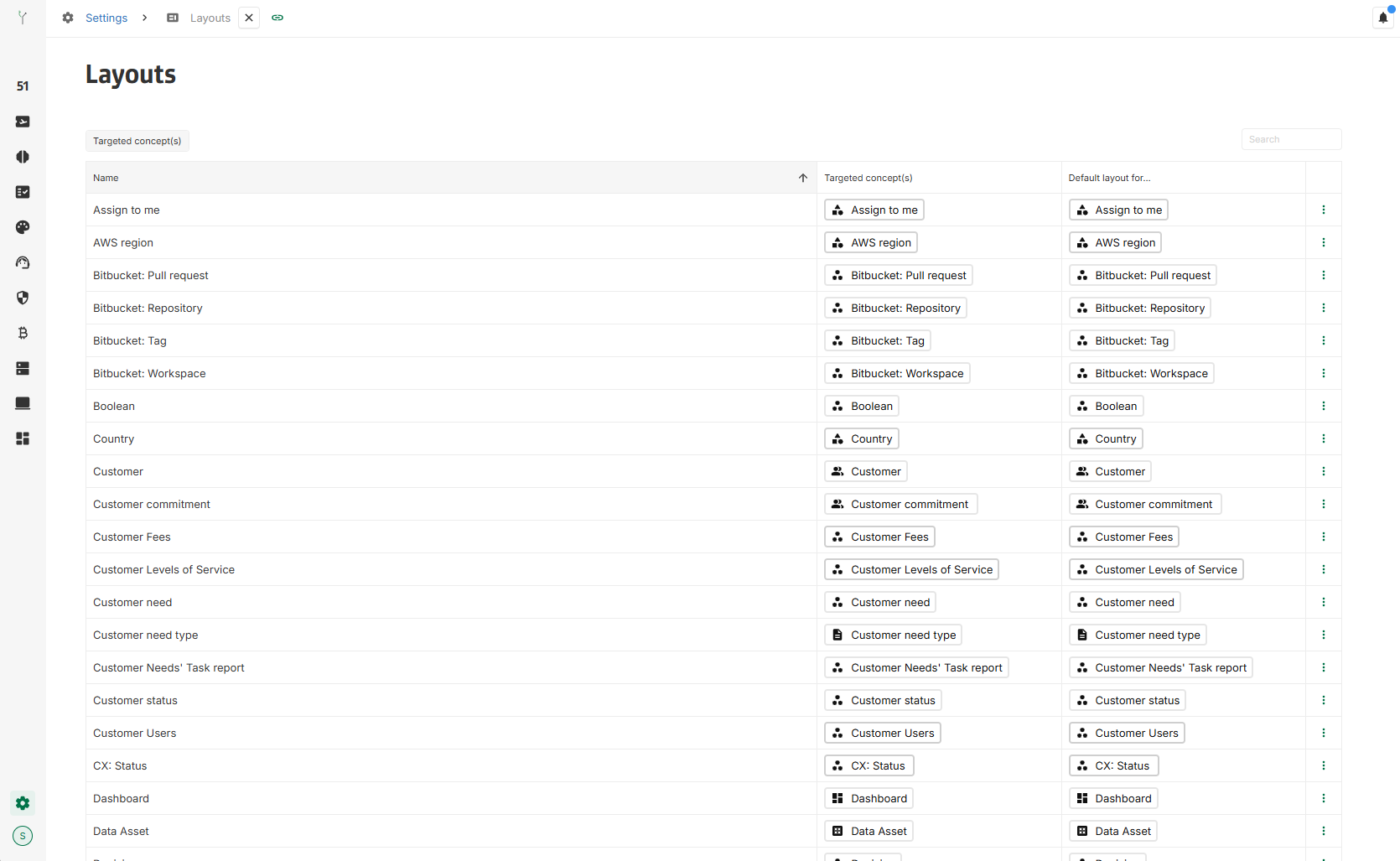
Default layout for one concept
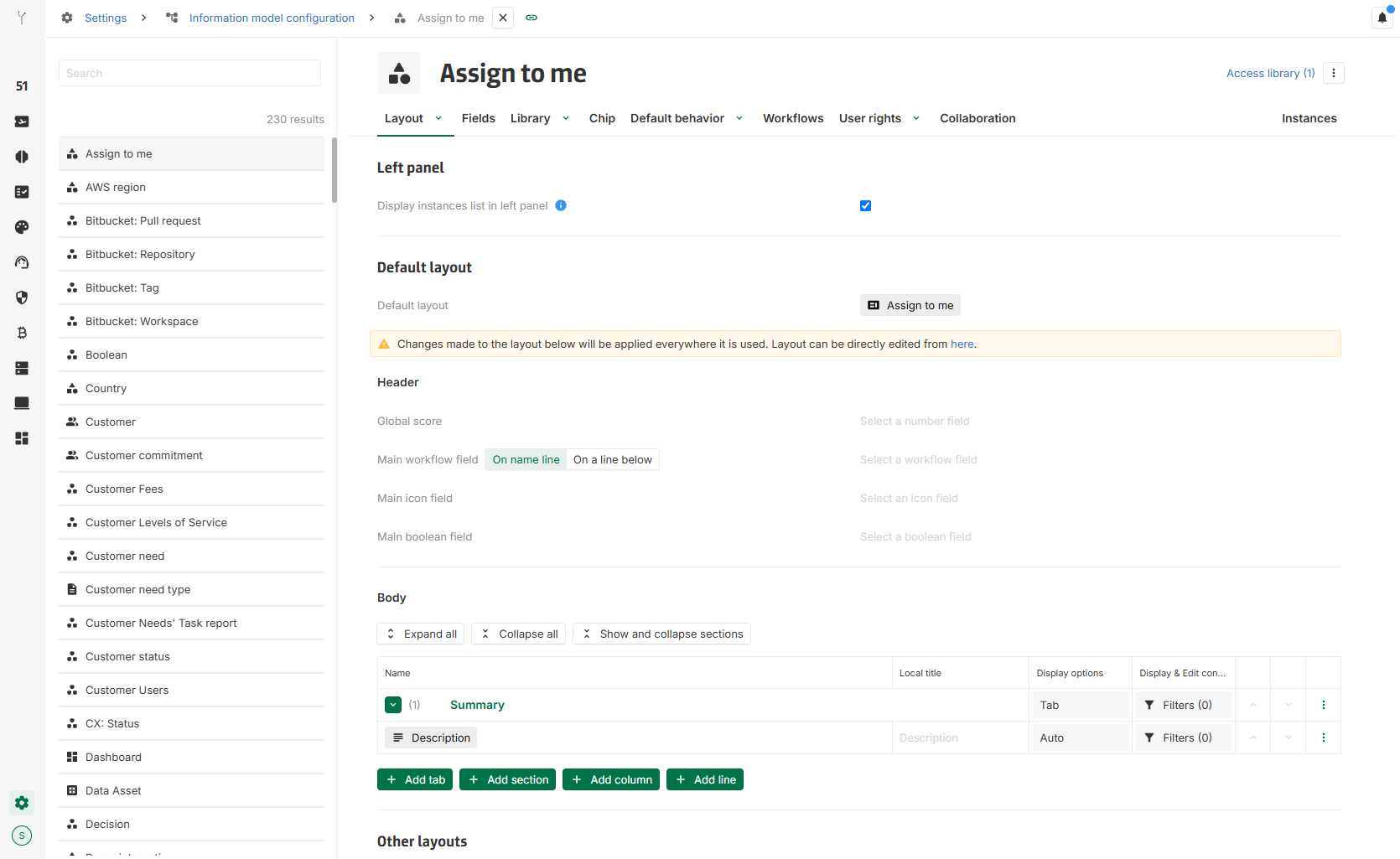
Each concept is assigned a single Default layout, which is automatically applied to its detail page Layout. The default layout can be edited directly from the layout configuration page within a concept's settings, maintaining the same process as before.
The layouts that were previously configured for each individual concept are now set as the default layouts for all concepts.
Multi-dimensional layouts
Layouts can now be created to target multiple concepts. While these multi-dimensional layouts are not yet fully functional—they can be created but are not currently displayable—this feature is part of a larger ongoing development effort that will soon unlock their full potential.
[Improvement] Enhanced readability and support of team managed statuses in the Jira connector
The Jira connector now offers greater clarity by displaying for issue type and statuses in the mapping section:
-
Scope: whether the item is project-specific or global
-
Project id: when applicable
-
id: the id of the issue type or status
In addition, the connector now supports team-managed statuses.
[Improvement] Enhanced security for Jira Data Center connector
Jira connectors now include support for webhook secrets in the data center version, adding an extra layer of security.
For further information, it possible to see the documentation.
2024-12-05
[Breaking Change] Ecosystem tab removal
The Ecosystem Tab, which automatically displayed all associations for a given concept, was identified as underutilized and presented challenges in delivering clear and actionable information efficiently.
As consequence, the feature has been removed.
[New] Phases field
The new phases field provides a clear and structured visualisation of project phases over time and can be used in layouts and tables. With these types of phases:
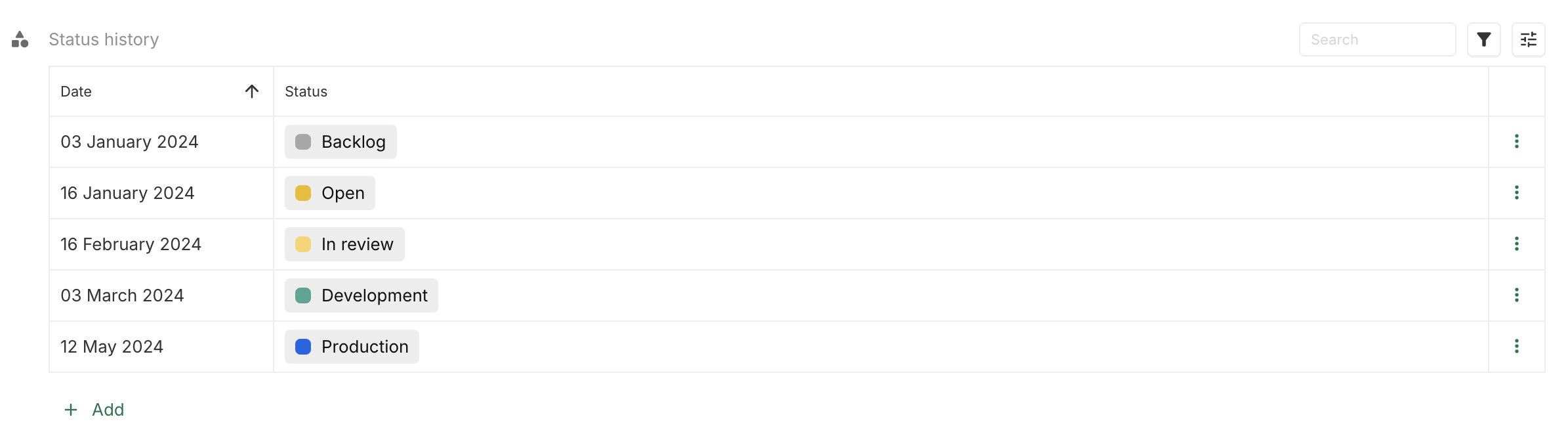
The following displays are available:
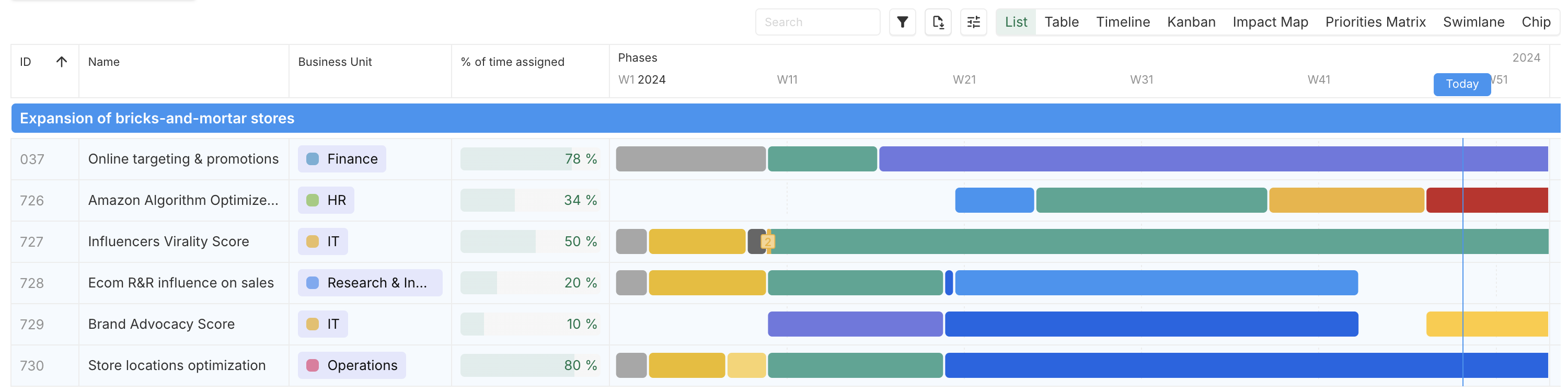

The key features of the new phases field are :
-
Dynamic phase durations: A phase ends when another phase start, therefore a phase timelines is automatically adjusted based on start dates only.
-
Timeline settings: The display timeframe, the label periodicity (e.g., weekly or monthly), and an optional Today marker for real-time context can be configured.
-
Multi-phase handling: It is possible to managed multiple phases starting on the same day with configurable order or default sequencing based on creation.
-
Phases filtering and hiding: Phases can be filtered entirely or hidden visually while preserving their impact on the timeline.
To know more about this new field, a documentation is available.
[Improvement] Inline view creation in Layout
Complex views can now directly be created from a concept definition. It is now possible to add a line on the layout that do not depends on any field.
2024-11-28
[New] Instance color and dot color enhancements
This feature introduces greater flexibility in defining the color of concept instances. The dot color is no longer used to determine instance colors, eliminating the requirement to display a dot color in chips for instances to have an associated color (e.g., in group-by views).
Instances color
The color of a concept instances can be defined in Settings > Default behavior > Instances color.
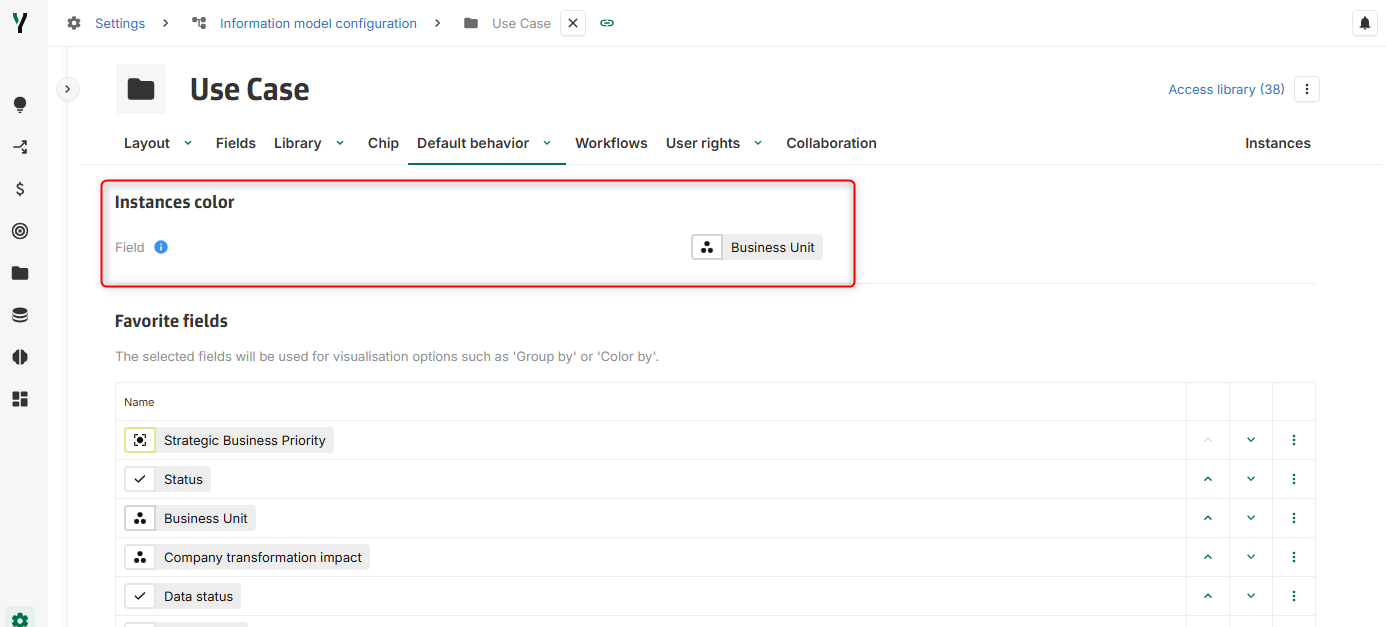
This field is used to represent instance color consistently across all relevant views.
Selectable field types are :
-
Color field
-
Icon field (use the icon color)
-
Association n-1 field (use the color of the targeted instance)
-
Workflow field (use the color of the targeted instance)
Chips
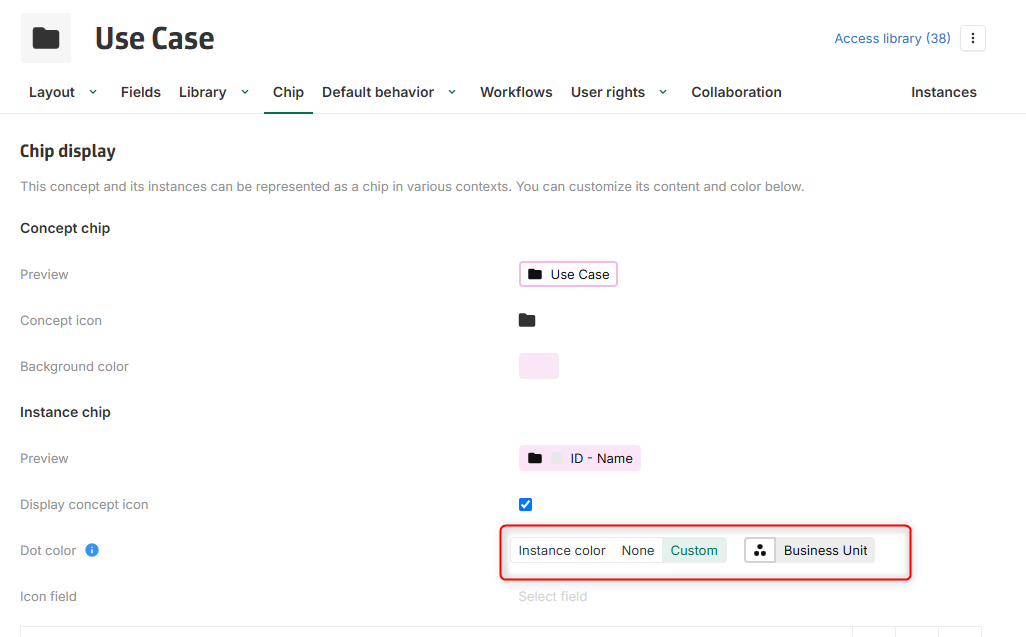
Three configuration options for chip dot color are available under Settings > Chip > Instance Chip:
-
Instance color: Uses the field defined in Default Behavior > Instances Color for the chip’s dot color.
-
None: Disables the dot display in chips.
-
Custom: Allows a specific field to be defined exclusively for the chip’s dot color, with the same selectable field types as those for Instances color.
2024-11-21
[Breaking Change] Removal of Highlight From/To Feature in Layout
The Highlight From/To Status feature has been removed due to limited usage, frequent misunderstandings of its behavior, and redundancy with the display condition feature.
Additionally, the ability to hide an empty field locally on an instance has been removed (as it was part of this feature).
These changes enhance performance by reducing the time needed to display a concept detail page.
[Improvement] Enhanced timeseries table view with read only mode
The timeseries table view now features a read only mode, empowering administrators to provide users with a secure, non-editable view of data. This enhancement ensures users can efficiently explore and analyze information without risking unintentional changes.
2024-11-14
[New] Enhanced security for password-based access
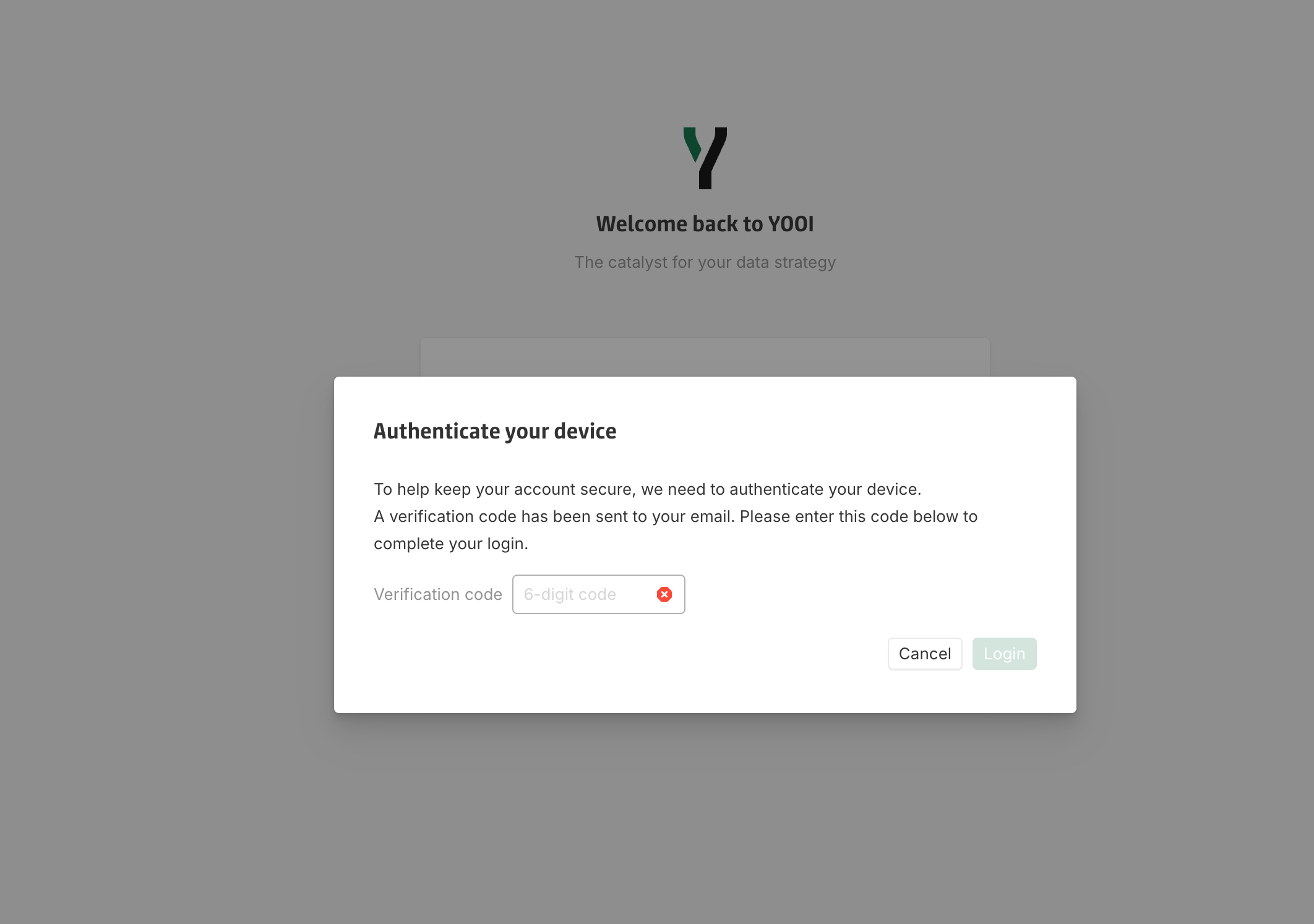
To strengthen account protection, Multi-Factor Authentication (MFA) has been implemented for password-based access. Users logging in with a password must verify their identity every 30 days through MFA, using a unique code sent to their registered email address.
How it works:
-
After entering the password, the user will receive a code by email.
-
The user must enter this code to complete the login process.
The additional verification step is required:
-
For each new device or browser.
-
Every 30 days for previously verified devices/browsers, which must be re-verified using the same process.
2024-11-07
[Improvement] Workflow transition ordering and styling
It is now possible to order and style workflow transitions button, in the workflow detail page.
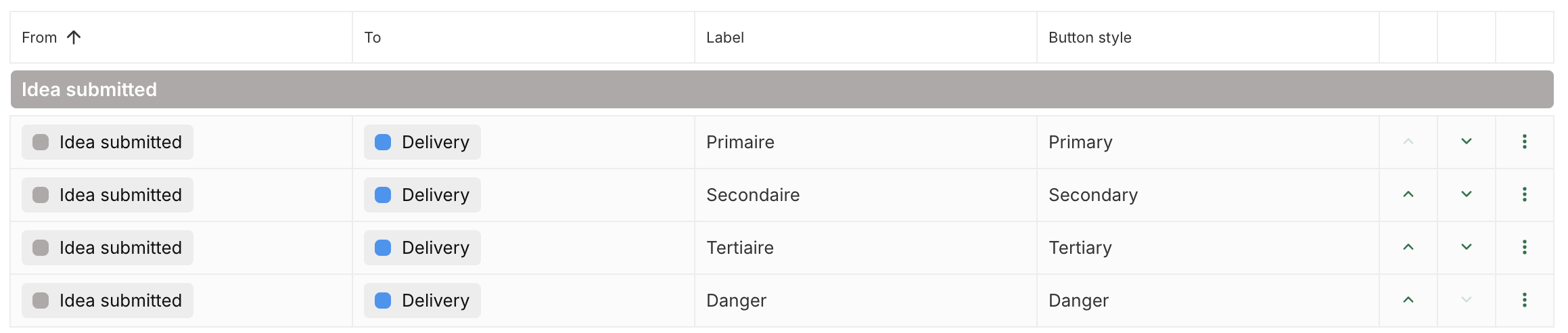
A new Button Style parameter has been introduced, allowing a choice among the following options:
-
Primary
-
Secondary
-
Tertiary
-
Danger

Additionally, up and down arrows in the last column of the configuration page enable the reordering of transitions.
2024-10-31
[New] Automation can now listen to external key field events
It is now possible to listen to updates on external key fields in automation.
[New] External key field can be updated by automation
It is now possible to update external key field using generate data automation operations.
[New] Export links to instance
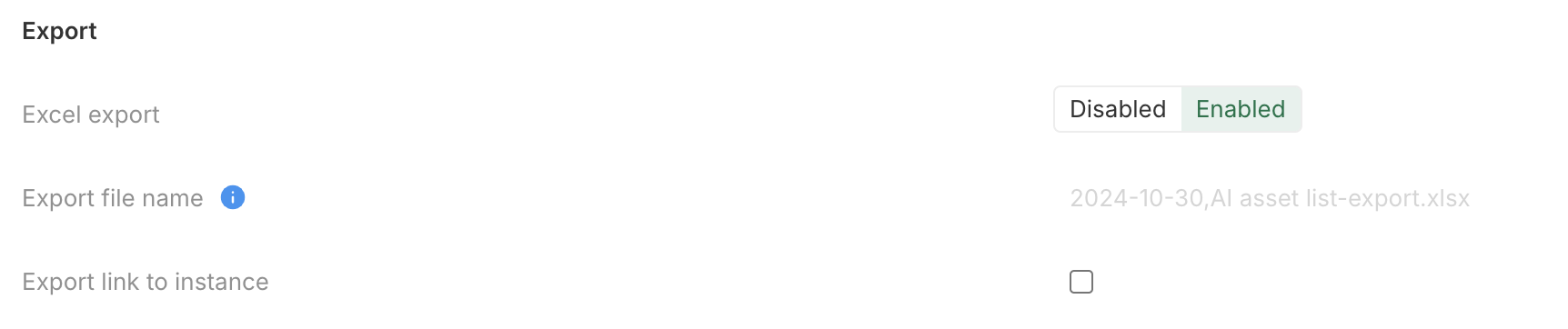
It is now possible to export the links of instances when doing an export of a view.
A new option Export link to instance is available in the configuration of Bar Chart, Table, Line Chart and Temporal Bar Chart.
2024-10-24
[New] Automation delete actions
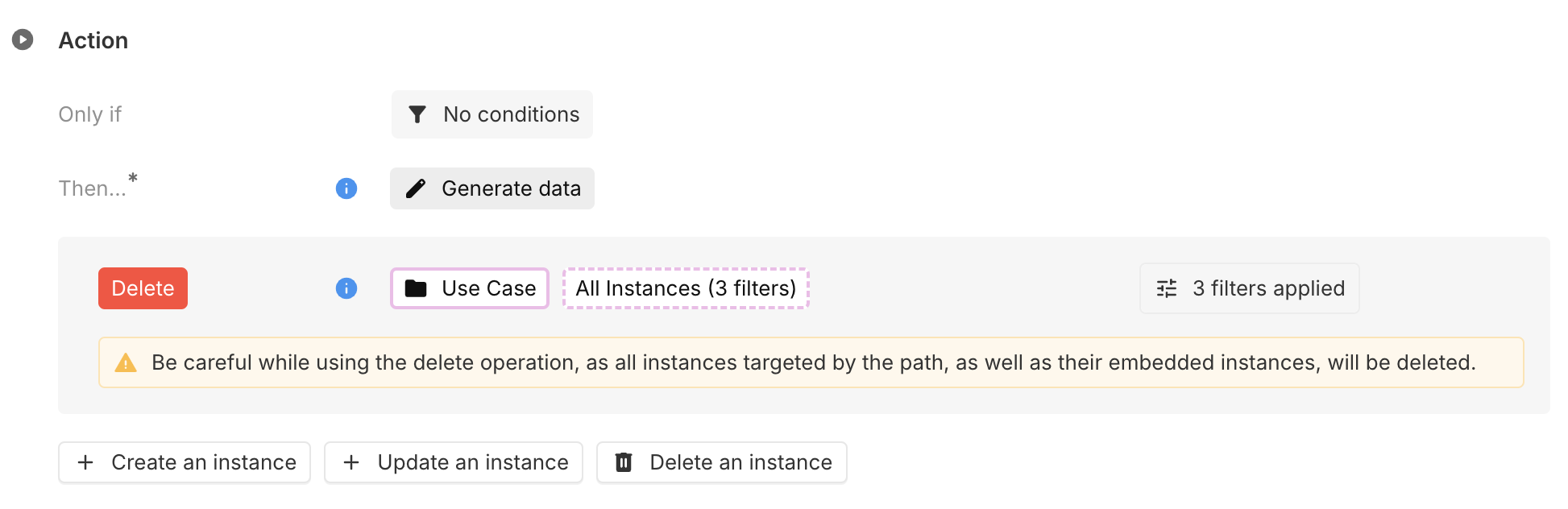
You can now perform delete actions using data automation operations, with the ability to dynamically select one or more instances for deletion. Please note that delete operations are irreversible.
[Improvement] [Breaking change] Integration API Update: Snapshot support
The /api/store/events/object endpoint no longer supports the initialState parameter for receiving object store snapshots.
Snapshot functionality has been moved to a new dedicated API: /api/store/snapshot.
This API accepts an optional minimalEventId parameter to ensure the snapshot represents a given minimal state.
Typically, the minimalEventId is the lastBroadcastedMessageId included in the connection message from /api/store/events/object API.
2024-10-10
[New] User lockout after consecutive invalid password attempts
Users will be temporarily locked out for 10 minutes if they fail to enter the correct password 5 times within a 5-minute window.
Users authenticated through SSO are not affected by this feature.
[New] Message Area field
Text constant field has been updated to a new Message area field, which allow the display of a text as a Text (as before) or as Banner (new). Style of the banner can then be chosen.


[Improvement] Views configuration layout update
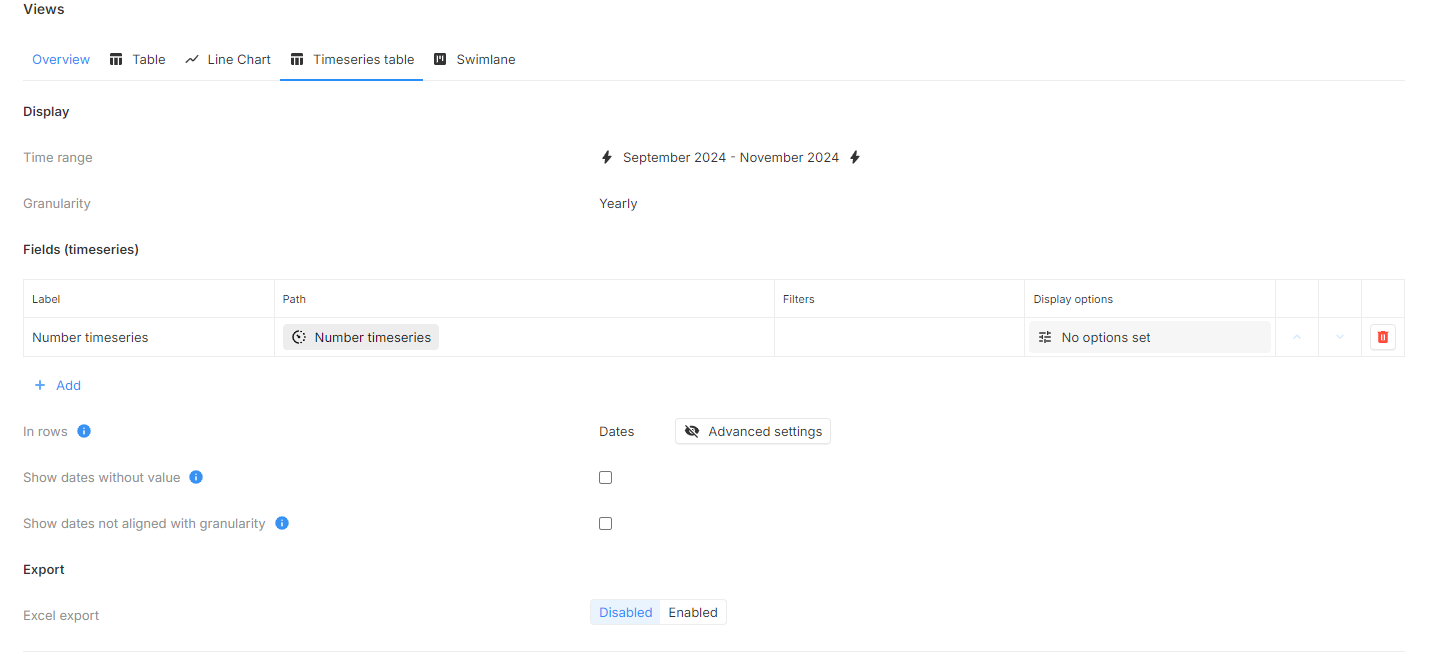
Views configurations pages have been updated to ease their usage (sections, titles and subtitles were added).
[Improvement] Performance enhancement
The overall performance of the table and dashboard has been optimized for faster load times and smoother user experience.
[Improvement] Minimum password length increased to 12 characters
To enhance security, the minimum password length has been increased to 12 characters. If current password does not meet this new requirement, it will be forcibly changed after login.
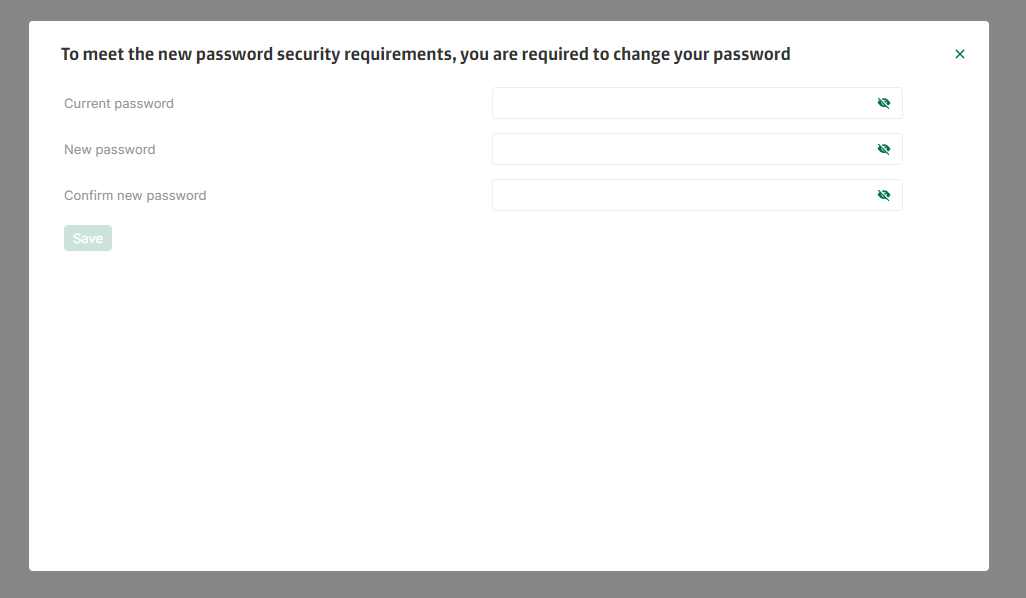
Users authenticated through SSO are not impacted by this change.
2024-10-03
[Improvement] Default session expiration time reduced to 12 Hours
For enhanced security, the default session expiration time has been reduced from 24 hours to 12 hours when not otherwise configured. Once the session expires, users will be required to log in again.
[Improvement] New formula engine
A new formula engine has been released, offering significant improvements in reliability and consistency.
Key features of the new engine include:
-
Validation during the configuration process, reducing the need for iterative corrections.
If an invalid formula is entered, an error is displayed directly in the field editor. -
An optimized execution mechanism that reduces the overhead of repeatedly running the same formulas.
-
Better consistency when handling
NULLvalues-
Previously, function returns like
VALUEAT(Input1, "2024-10-03")could not be reliably compared toNULL.
Now, comparisons likeIF(VALUEAT(Input1, "2024-10-03") = NULL, TRUE, FALSE)behave as expected. -
Previously, operations like
Input1 + Input2produced inconsistent results when one input wasNULL, potentially returning a number, an error, orNULL.
The new engine consistently returnsNaN(Not a Number) when any input isNULL.
To avoid manually dealing withNULLvalues when performing simple operation, consider using functions likeSUM,PRODUCT, …
-
Platform-embedded documentation page for formula has been revamped with more comprehensive examples and a clearer, more accurate description of the available functions.
Documentation can be accessed from the Functions library link next to any formula or from the Help menu in the Settings page.
2024-09-26
[New] Temporal Bar Chart view Excel export
Data from Temporal Bar Chart views can also now be export as Excel file with proper Excel types.
-
Export can be Enabled or Disabled from the bar chart view configuration page (all existing charts export are disabled by default and should be enabled manually).
-
Only the visible data is exported, taking the date range configuration into account.
-
Only dates with at least one value on one timeseries will be exported and dates are exported as YYYY/MM/DD.
2024-09-19
[New] Line Chart Export
Data from Line Chart views can now be exported as Excel file with proper Excel types.
-
Dimension and series export format are fully customizable from the line chart view configuration page (Export configuration).
-
Export can be Enabled or Disabled from the bar chart view configuration page.
-
By default, the exported file name is YYYY-MM-DD,[view name].xlsx, but can be configured from the bar chart view configuration page.
-
Only the visible data is exported, taking the date range configuration into account.
-
Only dates with at least one value on one timeseries will be exported and dates are exported as YYYY/MM/DD

When export is enabled, the file can be downloaded in one click from the export button at the top right of the view.
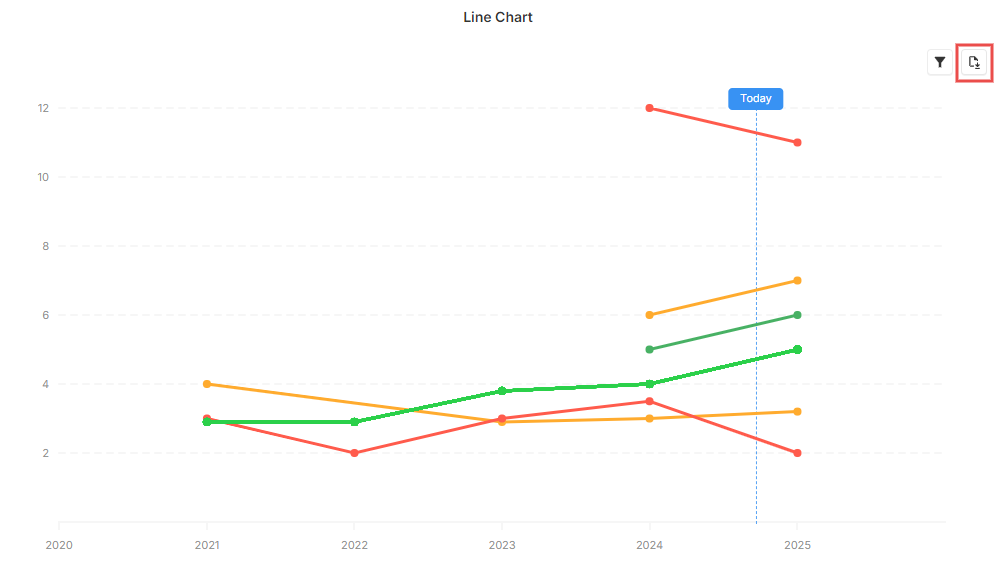
It is important to note that export is disabled on all existing line chart views. An admin must therefore enable export manually (Enabled button) on all views that require it.
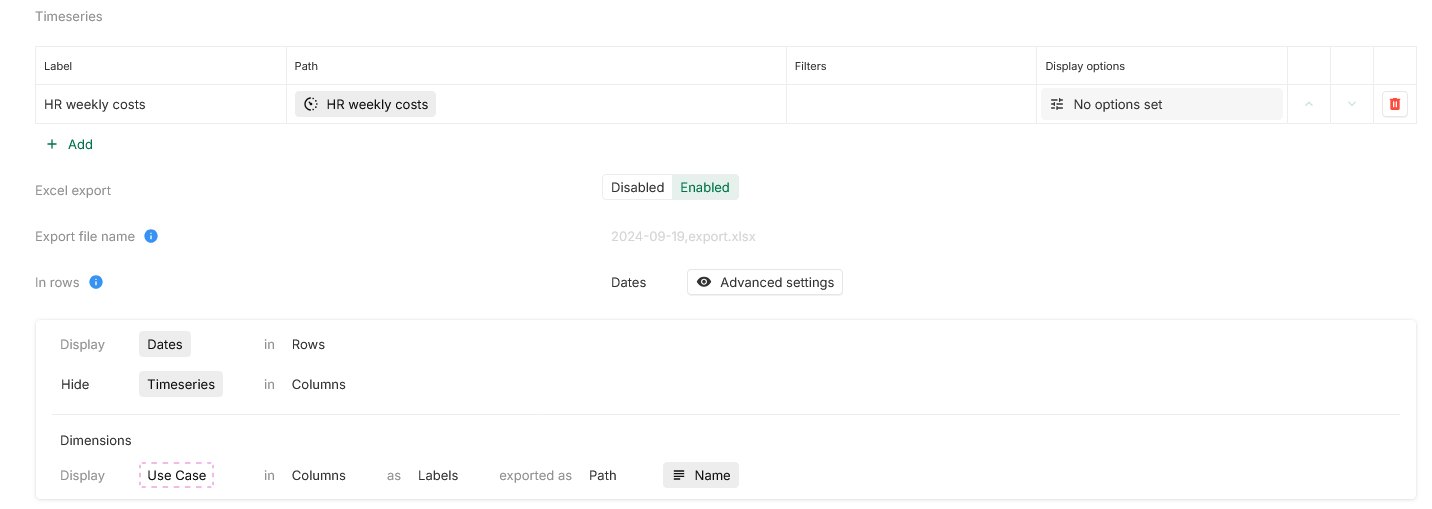
[New] Timeseries Table Export
Data from Timeseries Table views can also now be export as Excel file with proper Excel types.
-
Dimension and series export format are fully customizable from the line chart view configuration page.
-
Export can be Enabled or Disabled from the bar chart view configuration page.
-
By default, the exported file name is YYYY-MM-DD,[view name].xlsx, but can be configured from the bar chart view configuration page.
-
Only the visible data is exported, taking the date range, display of empty data and strict granularity configuration into account
2024-09-12
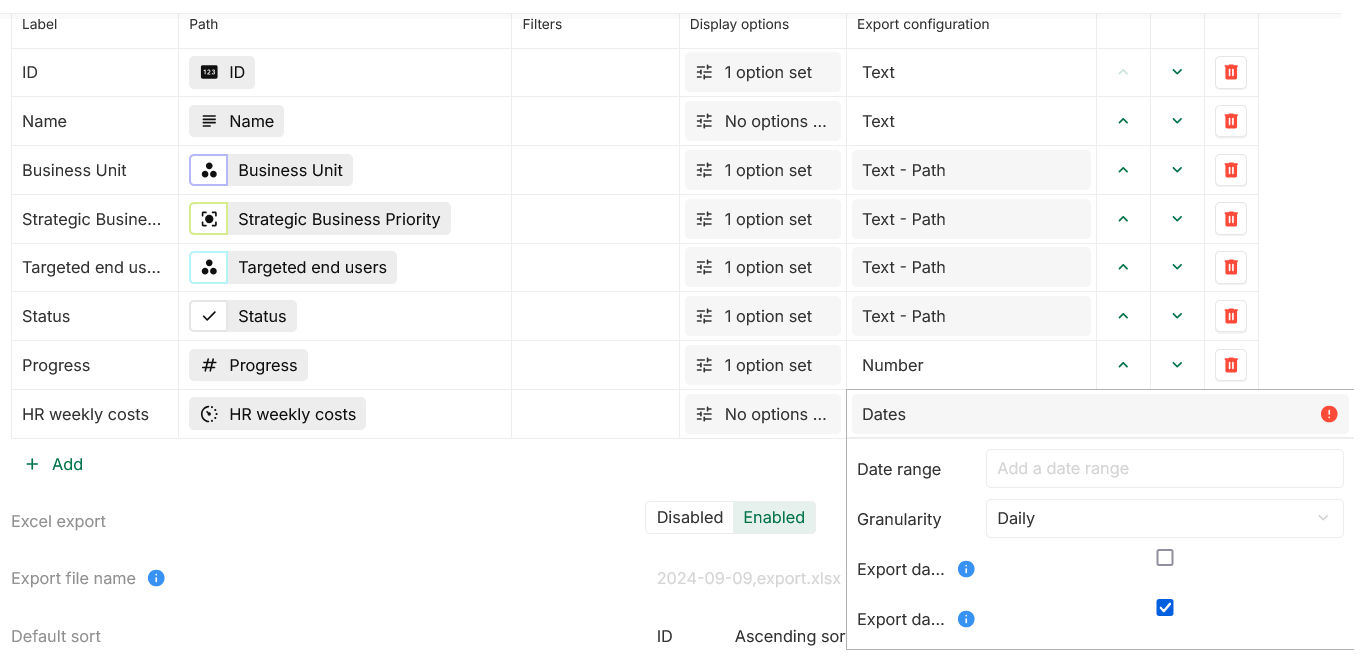
[Improvement] Timeseries fields export in table view
It’s now possible to export timeseries field using a table view. The export’s configuration is similar to the timeseries table view configuration and allow you to chose an export date range and granularity. Each time point will be exported as a separated column.
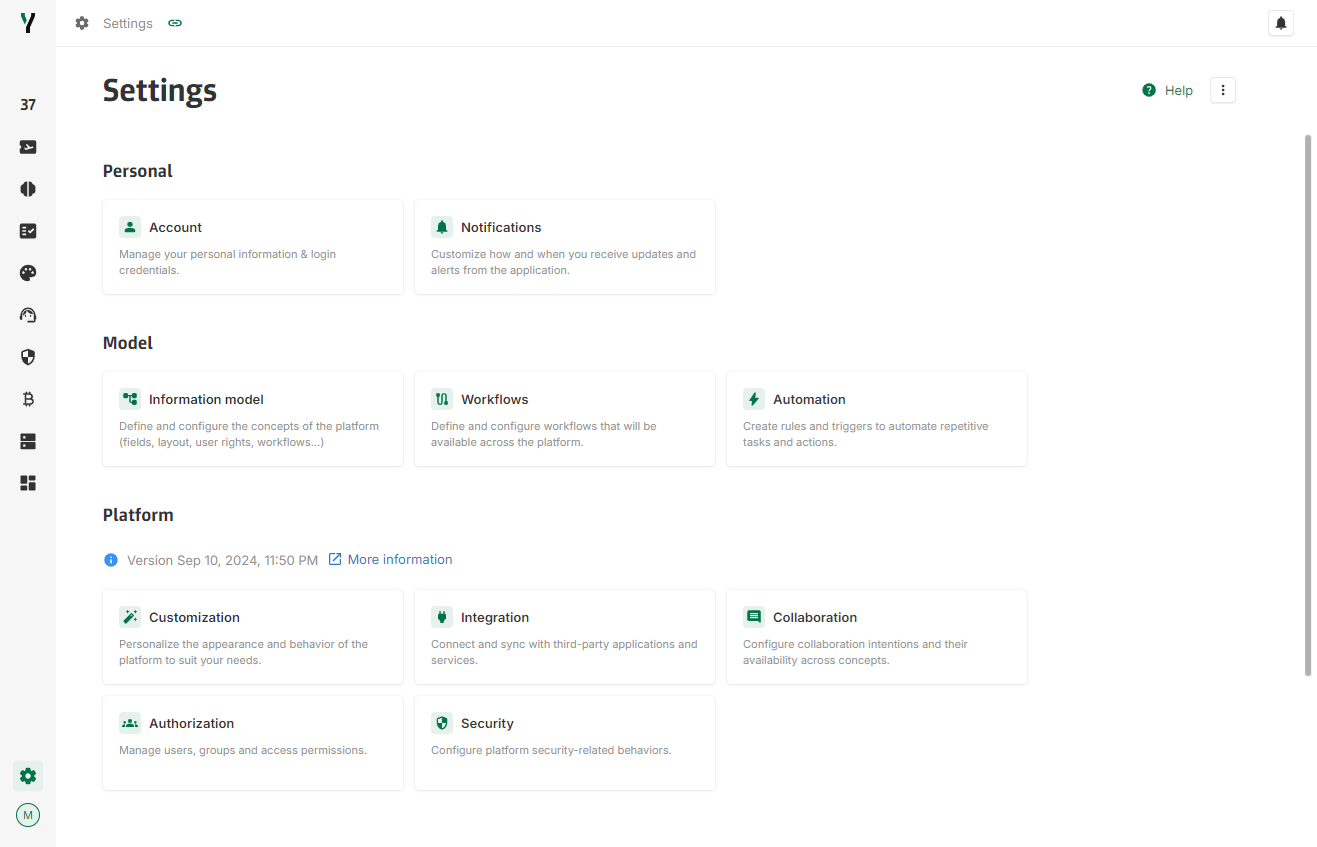
[Improvement] Improved setting page
The Settings page was revamped for a more streamlined experience.
Personal settings have now been relocated from the avatar menu to the Settings page, making it easier to manage your preferences in one central place.
Additionally, the Authorization page now includes a basic user list and group list, allowing for easier management of access and permissions.
2024-09-05
[New] Bar Chart Export
Data from Bar Chart views can now be exported as Excel file with proper Excel types.
-
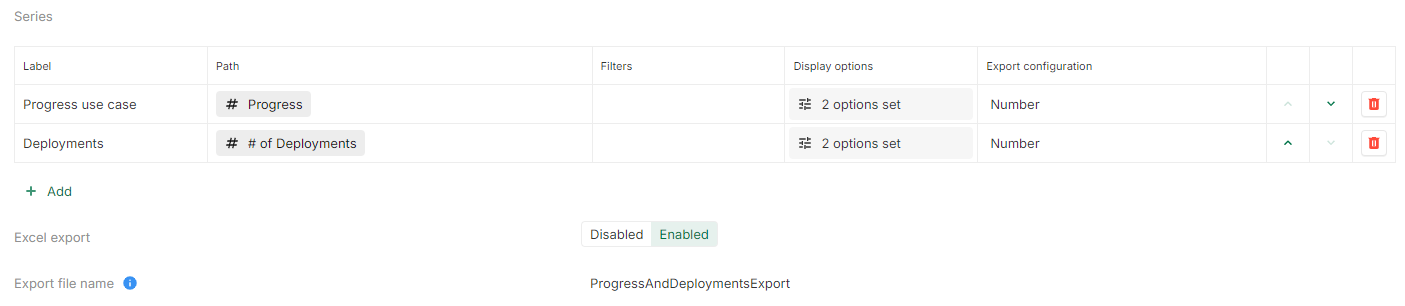
Dimension and series export format are fully customizable from the bar chart view configuration page (Export configuration).
-
Export can be Enabled or Disabled from the bar chart view configuration page.
-
By default, the exported file name is YYYY-MM-DD,[view name].xlsx, but can be configured from the bar chart view configuration page.
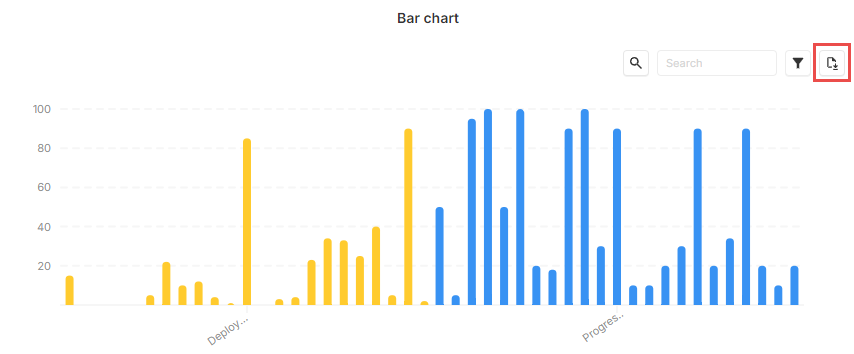
When export is enabled, the file can be downloaded in one click from the export button at the top right of the view.
It is important to note that export is disabled on all existing bar chart views. An admin must therefore enable export manually (Enabled button) on all views that require it.
[Improvement] Improve integration security
Bitbucket and Jira connectors now support webhook secrets.
2024-08-29
[New] Table Excel export
Table views can now be exported to an Excel file with proper Excel types.
-
Dimension and series export format can be fully configured in the configuration of the table view (Export configuration).
-
The export can be Enabled or Disabled.
-
By default the name of the file will be YYYY-MM-DD,[view name].xlsx, but can be configured.
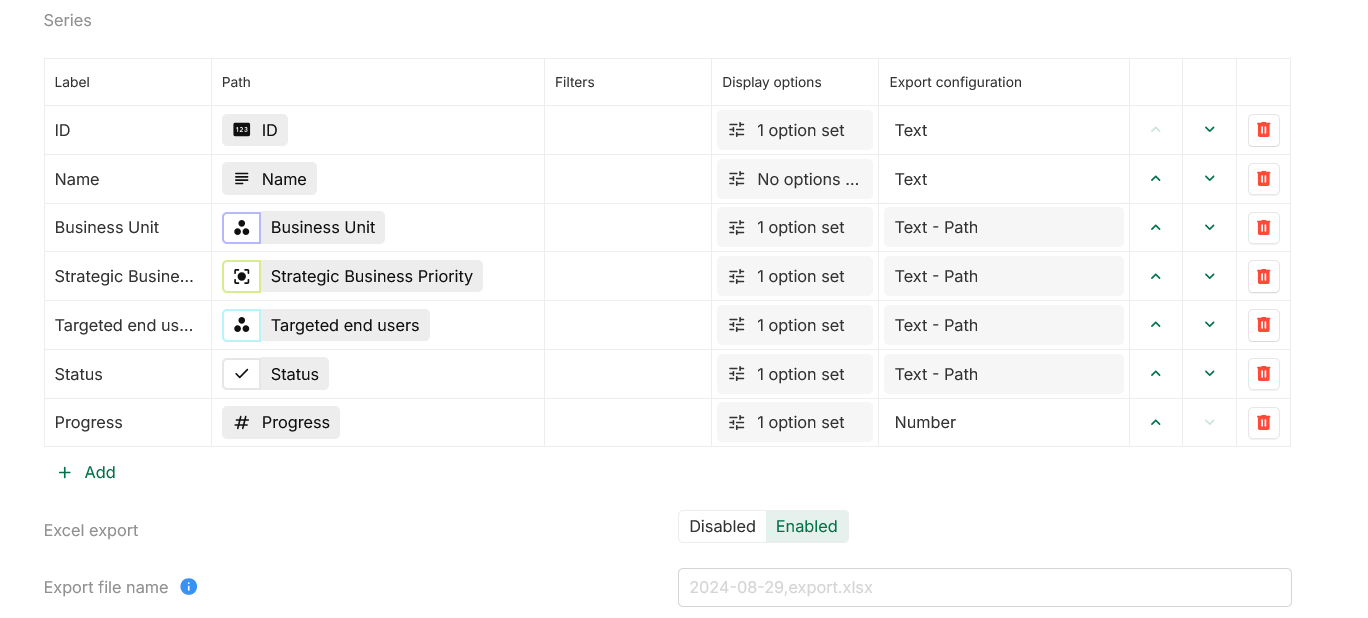
If the export is enabled on a table view, the Excel file can be generated by clicking on the new export button on the top bar of the widget.
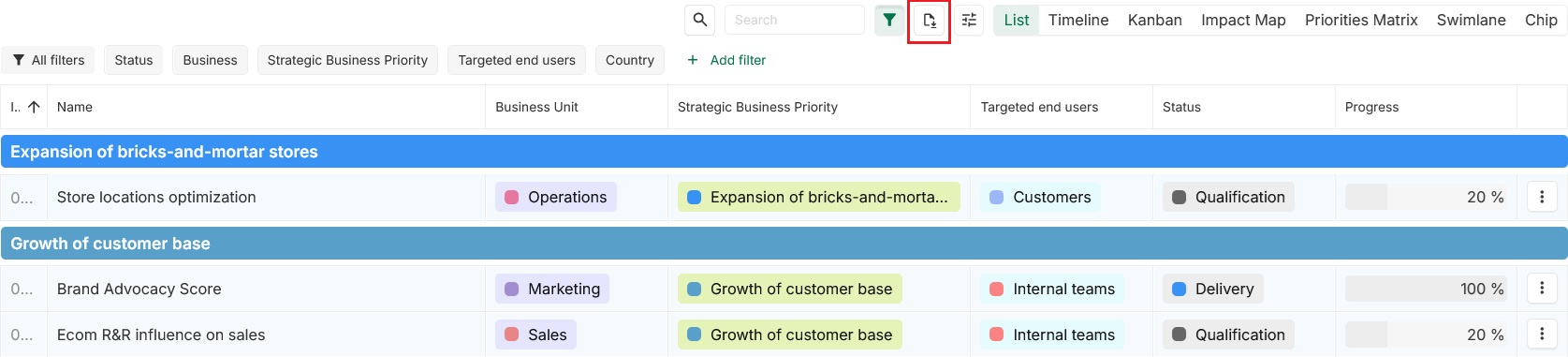
It is important to note that all existing table views have been set to Disabled for Excel export. An admin must enable (Enabled button) the needed ones.
2024-08-22
[Improvement] Reverse workflow field
To enhance the usability of workflow fields, each workflow field now has an associated reverse field that is accessible from the targeted concept. This reverse workflow field allows you to retrieve all instances with a specific status without needing to apply a filter (by starting from the status instance directly).
For example:
-
Instead of doing Use case > All instances and then filter with Status (Workflow) is In Progress, it is now possible to do Status > In progress > Reverse of “Status”, which will return all the Use Cases that are in In Progress.
-
Instead of doing Use case > All instances and then filter with Status (Workflow) is in In Progress, Draft, it is now possible to do Status > All instances (filters Status is in Progress, Draft) > Reverse of “Status”, which will return all the Use Cases that are in In Progress or Draft.
It is important to note that:
-
Using the reverse workflow field instead of filters is more efficient in terms of performance.
-
Currently, reverse workflow fields only support main values. Support for related fields (Applied on fields) will be added in a future update.
-
A reverse workflow field cannot be used to update values, it only offers a view of data.
[New] Restriction on workflow management
Due to the introduction of the reverse workflow field, certain restrictions have been implemented in workflow management:
-
Changing the targeted concept of a platform workflow after it has been selected is no longer permitted.
-
Assigning a workflow field to a workflow that targets a different concept is now restricted.
[Improvement] Auto scroll on table pagination
When navigating a paginated table, the page will automatically scroll to bring the top of the table into view if it is not already visible.
[New] Instance or parameter mapping is no longer possible along paths after a field
It is no longer possible to select a parameter or an instance along paths after a field and filters should be used in those cases. It is important to note that with filters, cardinality is never changed.
For example:
-
Instead of Use cases > All instances > Business Units (n-n) > Business Units A [cardinality 1]
-
It is now Use cases > All instances > Business Units (n-n) (filter is Business Units A) [cardinality n]
All concerned paths have been modified to comply with the new behavior.
2024-08-08
[New] Boolean field formula support
Boolean fields now support the use of formulas: any formula that returns TRUE, FALSE or NULL is considered valid. More information is available in the product documentation.
[Improvement] Concept master detail sort using displayed representation
The master detail default order has been improved to sort according to the text display to represent an instance instead of relying only on the Name field of the instances.
This improvement allows to improve the readability when the representation of an instance is customized.
2024-08-01
[New] Buttons alignment options on card widget
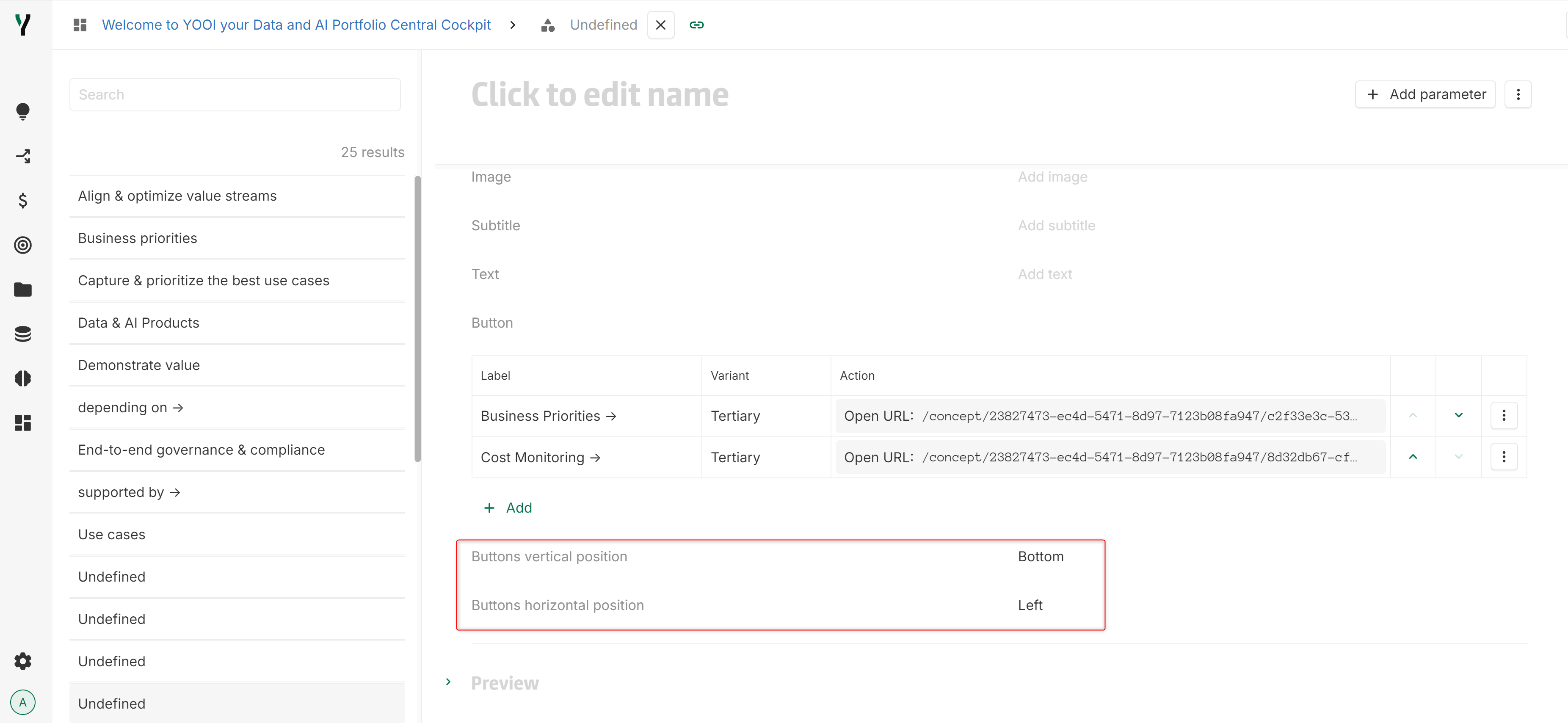
New options are available in card widget configuration, allowing to choose buttons alignment (default alignment is bottom left).
[New] Components supported in Jira connector
It is now possible to synchronise Jira components with YOOI. Everything is explained in detail in the documentation.
2024-07-18
[New] Open column in table view
On a mono dimensional table view, it is now possible to force the display of a column of open button.
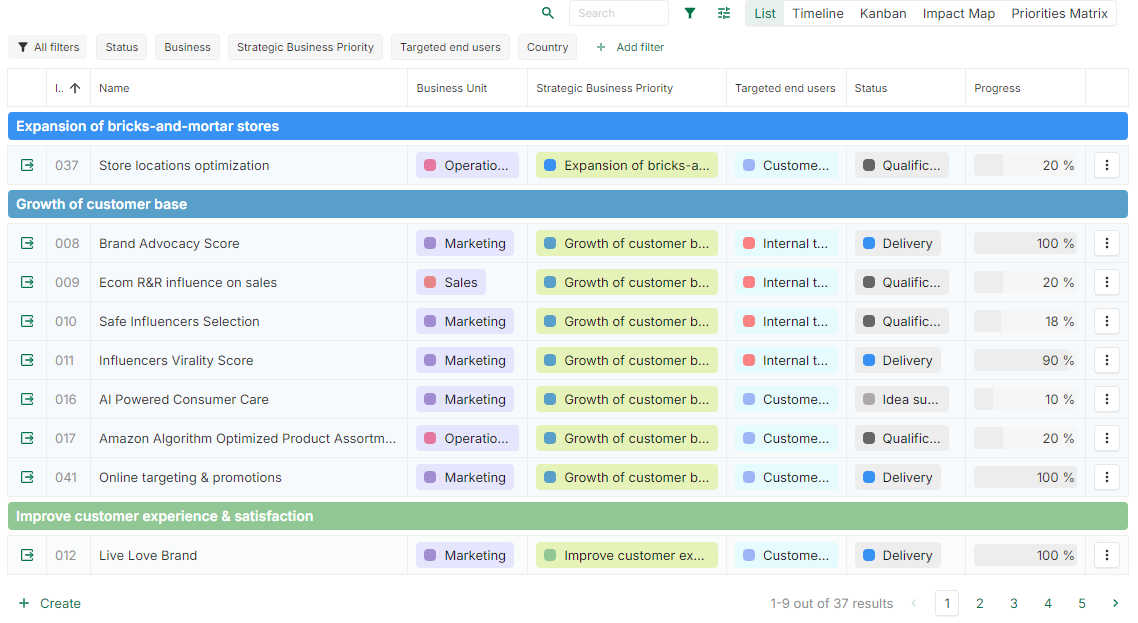
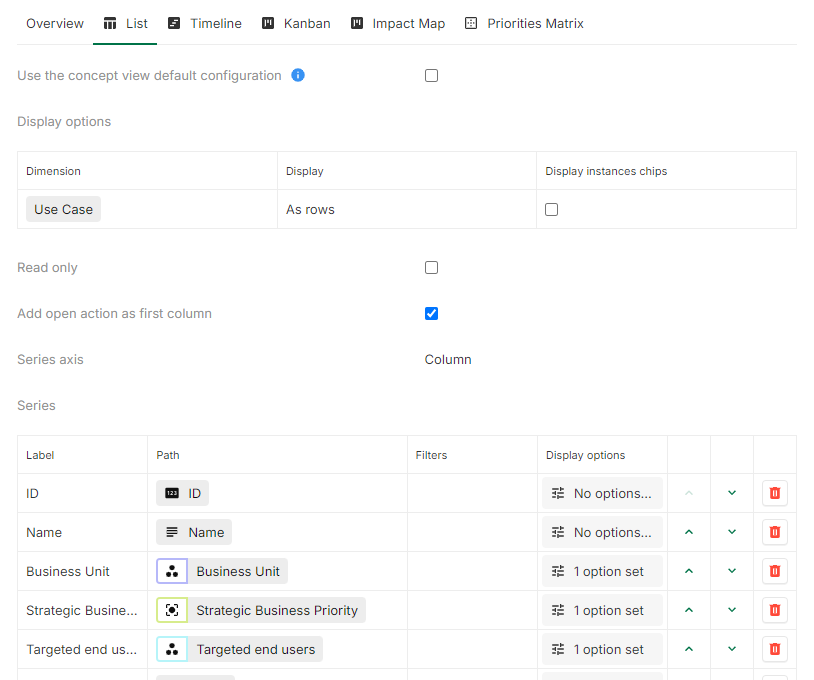
This can be activated by selecting the Add open action as first column option in the table view configuration.
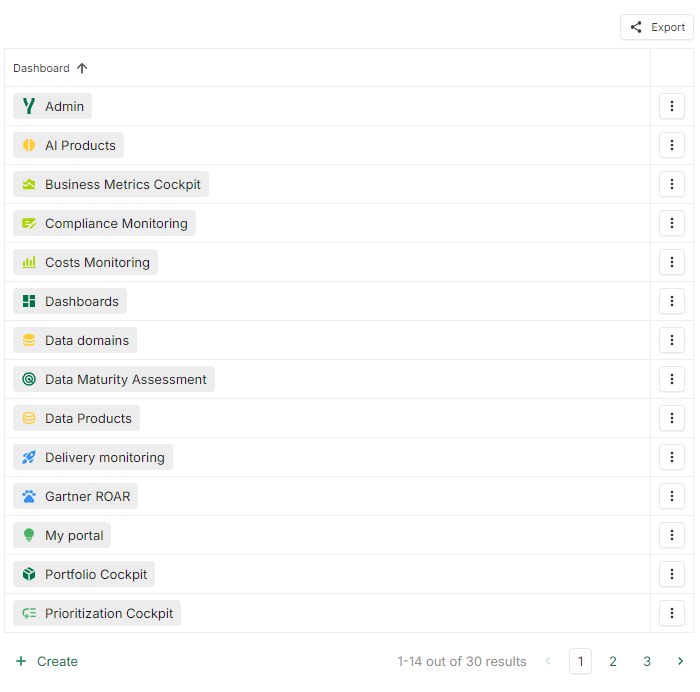
[New] Icon field in chip display
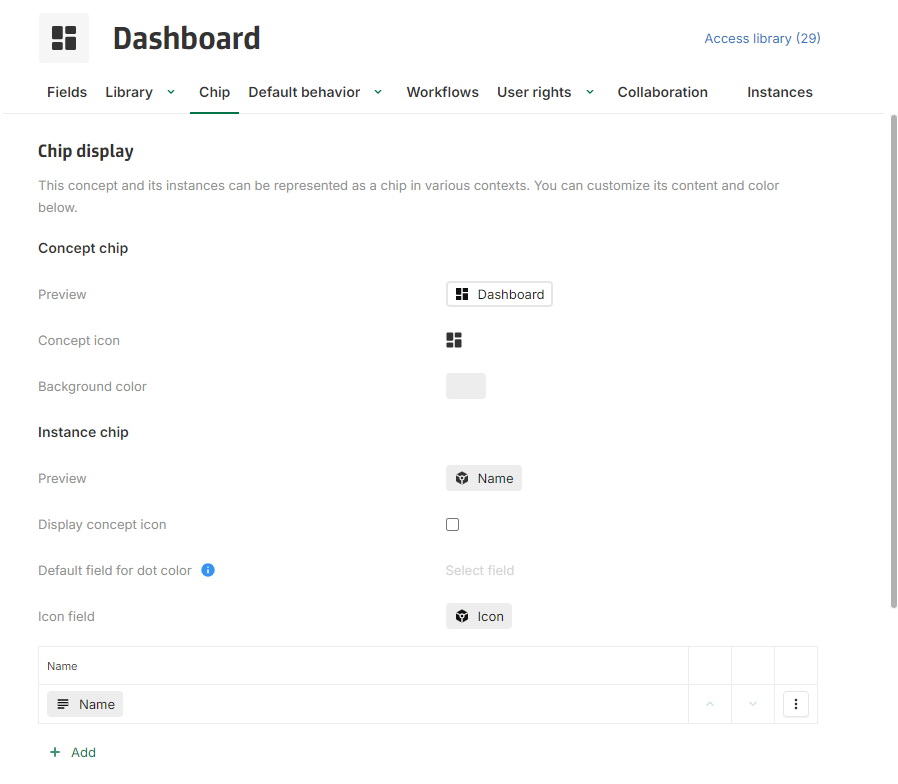
Icon field can now be set to be part of a chip representation.
It can be done via Chip tab of any concept definition by setting the Icon field.
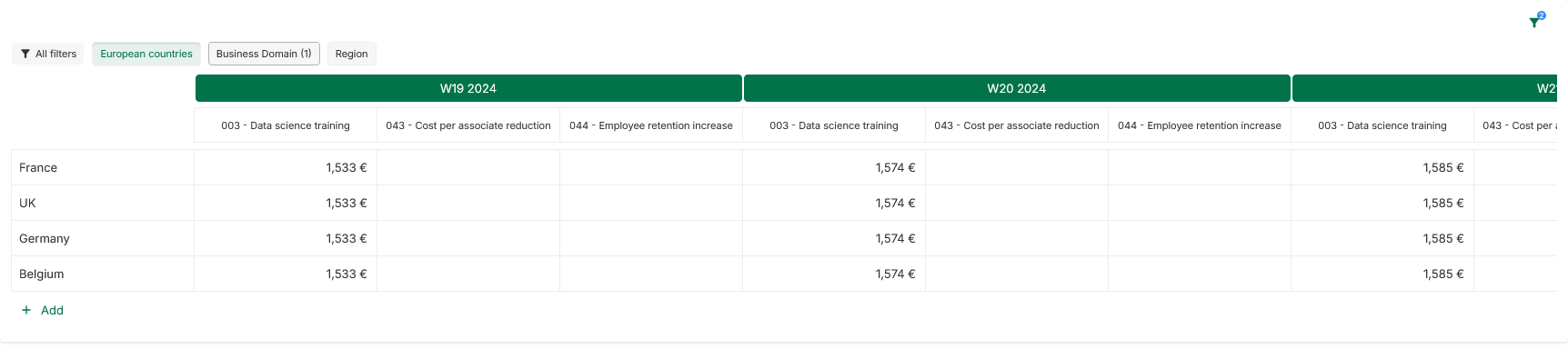
[Improvement] Multidimensional filters in views
When configuring a multidimensional table view, timeseries table view or cards view, it is now possible to define filters. If filters are activated on a multidimensional table view, custom filters doable by the end user are not available.
[Improvement] User activation status available as boolean field
User activation status is now available as boolean field on the user concept, allowing administrator to quickly edit its status and view and filter active users.
[Improvement] Left bar shortcuts now supports paths and Display conditions
Left bar shortcuts can now be defined using paths.
It also offers Display conditions to get more control over when each link is displayed.
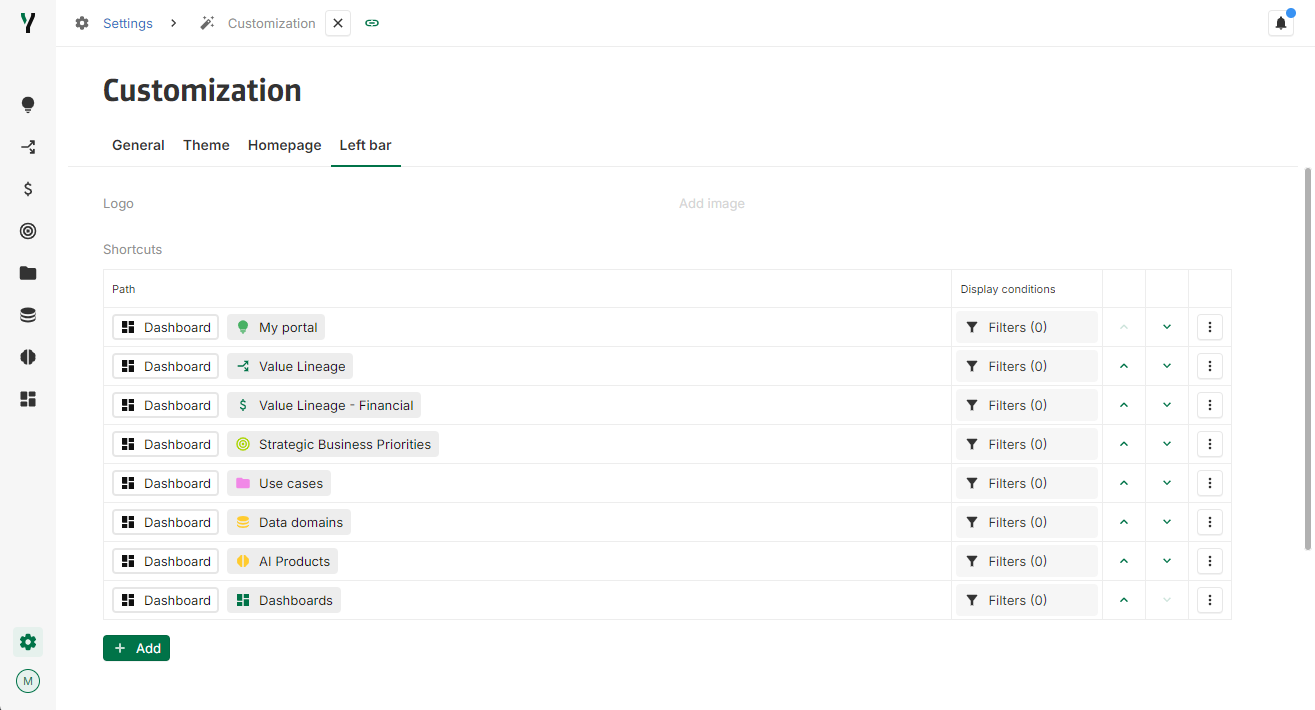
It is no longer possible to set a link to the Information model directly from the left bar.
2024-07-11
[New] Disclaimer message in collaboration
A customizable disclaimer message can now be displayed in the collaboration panel as a tooltip before writing messages.
The message can be customized in Admin settings > Collaboration> Options.

2024-07-04
[Improvement] Default name of reverse associations are now used everywhere
The reverse name that is used for reverse associations (Reverse of “Name of the field”) when no name is specified is now also used in a path, chip or view headers.
[Fix] Fix the order of instances in dropdowns
As before, instances are now ordered by the text displayed on the chip.